VX 9000 Virtualized Controller Installation Guide Published June 2017 9035073-01 9035073-01 Published June 2017 9035073-01
Copyright © 2017 Extreme Networks, Inc. All Rights Reserved. Legal Notices Extreme Networks, Inc. reserves the right to make changes in specifications and other information contained in this document and its website without prior notice. The reader should in all cases consult representatives of Extreme Networks to determine whether any such changes have been made. The hardware, firmware, software or any specifications described or referred to in this document are subject to change without notice.
Contents Introduction ...............................................................................................................3 Installing the VX Virtualized Controller on a Hypervisor ...................................5 Installing in an ESXi Environment ......................................................................................................................................... 6 Installing in a Hyper-V Environment .........................................................................
Contents VX 9000 Virtualized Controller Installation Guide 2
1 Introduction The VX virtualized controller is a software WLAN controller appliance running as a virtual machine (VM) on a variety of Hypervisor and Amazon EC2 cloud infrastructures. The VX 9000 supports virtually any server and commercially available Hypervisors for fast and seamless integration into an existing network infrastructure, without adding new hardware. You can run multiple instances of the VX 9000 on a single server, reducing cost, space and power in the Network Operations Center (NOC).
Introduction VX 9000 Virtualized Controller Installation Guide 4
2 Installing the VX Virtualized Controller on a Hypervisor To license and install the VX virtualized controller: 1 Use the following link to go to the extranet downloads page: Extreme Networks Extranet Download Page 2 If you do not have an extranet account, register here: https://secure.extremenetworks.com/register.aspx 3 Select the appropriate product family and then the product.
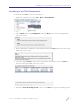
Installing the VX Virtualized Controller on a Hypervisor Installing in an ESXi Environment To install the VX 9000 in an ESXi environment: 1 Within the vSphere client, select File > New > Virtual Machine. 2 Select Typical within the Configuration field, then Next > from the lower, right-hand, side of the screen. 3 Enter a 80 character maximum virtual machine name, then Next > from the lower, righthand, side of the screen.
Installing the VX Virtualized Controller on a Hypervisor 6 Use the Version drop-down menu to select Other Linux (64-bit), then select Next > from the lower, right-hand, side of the screen. 7 Select one network interface card (NIC) from the How many NICs do you want to connect? drop-down menu. 8 Assign a Network to NIC1, then select Next > from the lower, right-hand, side of the screen.
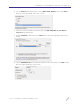
Installing the VX Virtualized Controller on a Hypervisor 10 Select the Edit the virtual machine settings before completion checkbox, then select Continue from the lower, right-hand, side of the screen. 11 From within the Hardware tab, select Memory as the hardware type and set the Memory Size. 12 Remain within the Hardware tab, and select CD/DVD.
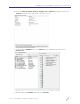
Installing the VX Virtualized Controller on a Hypervisor 13 Set the device type to Datastore ISO File. Select the Browse button and select the VX 9000 ISO file. Select Finish from the lower, right-hand, side of the screen. 14 Highlight the new VX 9000 VM and select the Console tab. 15 Right-click and select Power > Power On (or CTRL+B). 16 Select the Enter key when prompted to begin the VX 9000 installation process. 17 When the installation is completed, select the Enter key again to reboot the VX 9000.
Installing the VX Virtualized Controller on a Hypervisor Installing in a Hyper-V Environment To install the VX 9000 in a Hyper-V environment: 1 From the Hyper-V Virtual manager, under actions, select Virtual Switches > New virtual network switch. 2 Select External from within the Create virtual switch field. 3 Provide a Name for the switch and the physical interface used for External network connection. Select OK to save the updates.
Installing the VX Virtualized Controller on a Hypervisor 4 From the Hyper-V manager, select New > Virtual Machine to launch the New Virtual Machine Wizard used to create a virtual machine for the VX 9000. Select Next > from the lower right to continue. 5 From the Specify Name and Location screen, provide a Name for the virtual machine and specify its location. Select Next > from the lower right to continue. 6 From the Assign Memory screen, enter a Startup memory (in MB) for the virtual machine.
Installing the VX Virtualized Controller on a Hypervisor 7 From the Configure Networking screen, use the Connection drop-down menu to select the external network connection defined earlier in this Hyper-V installation. Select Next > from the lower right to continue. 8 From the Connect Virtual Hard Disk screen, select the Create a virtual hard disk option and specify the Location and Size of a dynamically expanding virtual hard disk. Select Next > from the lower right to continue.
Installing the VX Virtualized Controller on a Hypervisor 11 From the Summary screen, review the parameters you’ve defined for the virtual machine. Select Finish from the lower right to continue to commit the listed settings to the virtual machine configuration. 12 From Hyper-V manager, double click on the virtual machine and start it by selecting the power button. 13 When prompted within the console, select Enter to start the VX 9000 installation.
Installing the VX Virtualized Controller on a Hypervisor 14 When the installation is completed, select Enter to reboot the VX 9000. The VX 9000 is now ready for configuration.
3 License Key Activation License Key activation instruction are available at: https://gtacknowledge.extremenetworks.
License Key Activation VX 9000 Virtualized Controller Installation Guide 16