
Managing Faults on Virtual Services Platform 7200 Series and 8000 Series Version 5
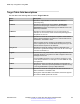
Table Of Contents
- Contents
- Chapter 1: Introduction
- Chapter 2: New in this document
- Chapter 3: Fault management fundamentals
- Chapter 4: Key Health Indicators using ACLI
- Chapter 5: Key Health Indicators using EDM
- Chapter 6: Link state change control using ACLI
- Chapter 7: Link state change control using EDM
- Chapter 8: RMON configuration using ACLI
- Chapter 9: RMON configuration using EDM
- Enabling RMON globally
- Enabling RMON on a port or VLAN
- Viewing the protocol directory
- Viewing the data source for protocol distribution statistics
- Viewing protocol distribution statistics
- Viewing the host interfaces enabled for monitoring
- Viewing address mappings
- Viewing the data source for host statistics
- Viewing network host statistics
- Viewing application host statistics
- Chapter 10: Log and trap fundamentals
- Chapter 11: Log configuration using ACLI
- Chapter 12: Log configuration using EDM
- Chapter 13: SNMP trap configuration using ACLI
- Chapter 14: SNMP trap configuration using EDM
- Glossary

About this task
Configure the profile table to associate a notification filter profile with a particular set of target
parameters.
Procedure
1. In the navigation tree, expand the following folders: Configuration > Edit > SnmpV3.
2. Click Notify Table.
3. Click the Notify Filter Profile Table tab.
4. Click Insert.
5. In the TargetParamsName box, type a name for the target parameters.
6. In the NotifyFilterProfileName box, type a name for the notify filter profile.
7. Click Insert.
Notify Filter Profile Table field descriptions
Use the data in the following table to use the Notify Filter Profile Table tab.
Name
Description
TargetParamsName Specifies the unique identifier associated with this entry.
NotifyFilterProfileName Specifies the name of the filter profile to use to generate notifications.
Enabling authentication traps
About this task
Enable the SNMP agent process to generate authentication-failure traps.
Procedure
1. In the navigation tree, expand the following folders: Configuration > Edit > Diagnostics.
2. Click General.
3. Click the Error tab.
4. Select AuthenticationTraps.
5. Click Apply.
Error field descriptions
Use the data in the following table to use the Error tab.
Enabling authentication traps
December 2015 Managing Faults on Avaya VSP 7200 Series and 8000 Series 85
Comments on this document? infodev@avaya.com