
Managing Faults on Virtual Services Platform 7200 Series and 8000 Series Version 5
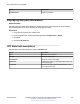
Table Of Contents
- Contents
- Chapter 1: Introduction
- Chapter 2: New in this document
- Chapter 3: Fault management fundamentals
- Chapter 4: Key Health Indicators using ACLI
- Chapter 5: Key Health Indicators using EDM
- Chapter 6: Link state change control using ACLI
- Chapter 7: Link state change control using EDM
- Chapter 8: RMON configuration using ACLI
- Chapter 9: RMON configuration using EDM
- Enabling RMON globally
- Enabling RMON on a port or VLAN
- Viewing the protocol directory
- Viewing the data source for protocol distribution statistics
- Viewing protocol distribution statistics
- Viewing the host interfaces enabled for monitoring
- Viewing address mappings
- Viewing the data source for host statistics
- Viewing network host statistics
- Viewing application host statistics
- Chapter 10: Log and trap fundamentals
- Chapter 11: Log configuration using ACLI
- Chapter 12: Log configuration using EDM
- Chapter 13: SNMP trap configuration using ACLI
- Chapter 14: SNMP trap configuration using EDM
- Glossary

Chapter 5: Key Health Indicators using
EDM
The Key Health Indicators (KHI) feature of the switch provides a subset of health information that
allows for quick assessment of the overall operational state of the device.
Note:
The KHI feature is not intended to provide a comprehensive debugging solution. Instead, KHI
identifies key information that could lead Avaya support personnel towards discovery of a
specific failure. After the technician assesses the KHI information, further debugging is required
to determine the specific reason for the fault.
Avaya recommends that you capture KHI information during normal operations to provide a baseline
for Avaya support personnel when detecting fault situations.
Clearing KHI statistics
About this task
Clear KHI statistics.
Procedure
1. In the Device Physical View tab, select the Device.
2. In the navigation tree, expand the following folders: Configuration > Edit.
3. Click Chassis.
4. Click the CPP Stats Control tab.
5. Select the statistics you want to clear.
6. Click Apply.
CPP Stats Control field descriptions
Use the data in the following table to use the CPP Stats Control tab.
December 2015 Managing Faults on Avaya VSP 7200 Series and 8000 Series 27
Comments on this document? infodev@avaya.com