
Managing Faults on Virtual Services Platform 7200 Series and 8000 Series Version 5.1.2

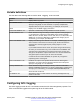
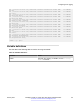
Table Of Contents
- Contents
- Chapter 1: Introduction
- Chapter 2: New in this document
- Chapter 3: Fault management fundamentals
- Chapter 4: Key Health Indicators using ACLI
- Chapter 5: Key Health Indicators using EDM
- Chapter 6: Link state change control using ACLI
- Chapter 7: Link state change control using EDM
- Chapter 8: Log and trap fundamentals
- Chapter 9: Log configuration using ACLI
- Configuring a UNIX system log and syslog host
- Configuring secure forwarding
- Installing root certificate for syslog client
- Configuring logging
- Configuring the remote host address for log transfer
- Configuring system logging
- Configuring system message control
- Extending system message control
- Viewing logs
- Configuring ACLI logging
- Chapter 10: Log configuration using EDM
- Chapter 11: SNMP trap configuration using ACLI
- Chapter 12: SNMP trap configuration using EDM
- Glossary

Name Description
OperState Specifies the operational state of the syslog service. The default is
active.
Header Specifies the IP header in syslog packets to circuitlessIP or
default.
• If the value is default, the IP address of the VLAN is used for
syslog packets that are transmitted in-band using input/output
(I/O) ports.
• If the value is circuitlessIP, the circuitless IP address is used in
the IP header for all syslog messages (in-band or out-of-band).
If you configure multiple circuitless IPs, the first circuitless IP
configured is used.
The default value is default.
Configuring the system log table
About this task
Use the system log table to customize the mappings between the severity levels and the type of
alarms.
You can log system log messages to external system log hosts with both IPv4 and IPv6 addresses
with no difference in functionality or configuration except in the following case. When you configure
the system log table, under the System Log Table tab, you must select ipv4 or ipv6, in the
AddressType box. The Address box supports both IPv4 and IPv6 addresses.
Procedure
1. In the navigation tree, expand the following folders: Configuration > Edit > Diagnostics.
2. Click System Log.
3. Click the System Log Table tab.
4. Click Insert.
5. Configure the parameters as required.
6. Click Insert.
7. To modify mappings, double-click a parameter to view a list of options.
8. Click Apply.
System Log Table field descriptions
Use the data in the following table to use the System Log Table tab.
Configuring the system log table
January 2017 Managing Faults on Avaya VSP 7200 Series and 8000 Series 57
Comments on this document? infodev@avaya.com