
Managing Faults on Virtual Services Platform 7200 Series and 8000 Series Version 5.1.2
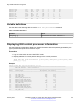

Table Of Contents
- Contents
- Chapter 1: Introduction
- Chapter 2: New in this document
- Chapter 3: Fault management fundamentals
- Chapter 4: Key Health Indicators using ACLI
- Chapter 5: Key Health Indicators using EDM
- Chapter 6: Link state change control using ACLI
- Chapter 7: Link state change control using EDM
- Chapter 8: Log and trap fundamentals
- Chapter 9: Log configuration using ACLI
- Configuring a UNIX system log and syslog host
- Configuring secure forwarding
- Installing root certificate for syslog client
- Configuring logging
- Configuring the remote host address for log transfer
- Configuring system logging
- Configuring system message control
- Extending system message control
- Viewing logs
- Configuring ACLI logging
- Chapter 10: Log configuration using EDM
- Chapter 11: SNMP trap configuration using ACLI
- Chapter 12: SNMP trap configuration using EDM
- Glossary

Name Description
PortStatsClear Clears port statistics.
Displaying KHI port information
About this task
Use the following commands to display key health information about the types of control packets
and protocols received on a port and sent to the control processor.
Procedure
1. In the Device Physical View, select a port.
2. In the navigation tree, expand the following folders: Configuration > Graph.
3. Click Port.
4. Click the CPP Stats tab.
CPP Stats field descriptions
Use the data in the following table to use the CPP Stats tab.
Name
Description
Port Identifies the slot and port.
Packet Shows the packet type.
PacketName Shows the name of the packet.
RxPackets Indicates the number of received packets on the port
for the packet type.
TxPackets Indicates the number of transmitted packets on the
port for the packet type.
Displaying KHI port information
January 2017 Managing Faults on Avaya VSP 7200 Series and 8000 Series 25
Comments on this document? infodev@avaya.com