
Managing Faults on Avaya Virtual Services Platform 7200 Series and 8000 Series Version 4.2.1
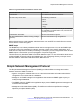
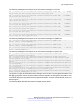
Table Of Contents
- Contents
- Chapter 1: Introduction
- Chapter 2: New in this release
- Chapter 3: Fault management fundamentals
- Chapter 4: Key Health Indicators using ACLI
- Chapter 5: Key Health Indicators using EDM
- Chapter 6: Link state change control using ACLI
- Chapter 7: Link state change control using EDM
- Chapter 8: RMON configuration using ACLI
- Chapter 9: RMON configuration using EDM
- Enabling RMON globally
- Enabling RMON on a port or VLAN
- Enabling RMON1 history
- Disabling RMON1 history
- Viewing RMON1 history statistics
- Creating an RMON1 alarm
- Creating an RMON1 port history alarm
- Viewing RMON1 alarms
- Deleting an RMON1 alarm
- Creating a default RMON1 event
- Creating a nondefault RMON1 event
- Viewing RMON1 events
- Viewing the RMON log
- Deleting an event
- Viewing the protocol directory
- Viewing the data source for protocol distribution statistics
- Viewing protocol distribution statistics
- Viewing the host interfaces enabled for monitoring
- Viewing address mappings
- Viewing the data source for host statistics
- Viewing network host statistics
- Viewing application host statistics
- Chapter 10: Viewing statistics using ACLI
- Chapter 11: Viewing statistics using EDM
- Chapter 12: Log and trap fundamentals
- Chapter 13: Log configuration using ACLI
- Chapter 14: Log configuration using EDM
- Chapter 15: SNMP trap configuration using ACLI
- Chapter 16: SNMP trap configuration using EDM
- Chapter 17: RMON alarm variables
- Glossary

• Error
• Alert
• Emergency
The following table shows the default mapping of internal severity levels to syslog severity levels.
Table 11: Default and system log severity level mapping
UNIX system error
codes
System log severity level Internal severity level
0 Emergency Fatal
1 Alert —
2 Critical —
3 Error Error
4 Warning Warning
5 Notice —
6 Info Info
7 Debug —
Log files
The log file captures hardware and software log messages, and alarm messages. The switch logs to
internal flash.
The system saves internal log messages in a circular list in memory, which overwrite older log
messages as the log fills. Unlike the log messages in a log file, the internal log messages in memory
do not contain encrypted information, which can limit the information available during
troubleshooting. Free up the disk space on the flash if the system generates the disk space 75% full
alarm. After the disk space utilization returns below 75%, the system clears the alarm, and then
starts logging to a file again.
Log file naming conventions
The following list provides the naming conventions for the log file:
• The log file is named as log.xxxxxxxx.sss format. The prefix of the log file name is log. The six
characters after the log file prefix contain the last three bytes of the chassis base MAC
address. The next two characters are 01. The last three characters (sss) denote the sequence
number of the log file.
• The sequence number of the log file is incremented for each new log file created after the
existing log file reaches the maximum configured size.
• At initial system start up when no log file exists, a new log file with the sequence number 000 is
created. After a restart, the system finds the newest log file from internal flash based on file
timestamps. If the newest log file is on the flash that is used for logging, the system continues
to use the newest log file. And once the maximum configured size is reached, system
Log files
June 2015 Managing Faults on Avaya VSP 7200 Series and 8000 Series 79
Comments on this document? infodev@avaya.com