
Managing Faults on Avaya Virtual Services Platform 7200 Series and 8000 Series Version 4.2.1
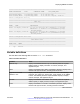
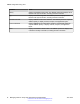
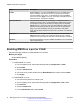
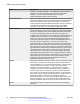
Table Of Contents
- Contents
- Chapter 1: Introduction
- Chapter 2: New in this release
- Chapter 3: Fault management fundamentals
- Chapter 4: Key Health Indicators using ACLI
- Chapter 5: Key Health Indicators using EDM
- Chapter 6: Link state change control using ACLI
- Chapter 7: Link state change control using EDM
- Chapter 8: RMON configuration using ACLI
- Chapter 9: RMON configuration using EDM
- Enabling RMON globally
- Enabling RMON on a port or VLAN
- Enabling RMON1 history
- Disabling RMON1 history
- Viewing RMON1 history statistics
- Creating an RMON1 alarm
- Creating an RMON1 port history alarm
- Viewing RMON1 alarms
- Deleting an RMON1 alarm
- Creating a default RMON1 event
- Creating a nondefault RMON1 event
- Viewing RMON1 events
- Viewing the RMON log
- Deleting an event
- Viewing the protocol directory
- Viewing the data source for protocol distribution statistics
- Viewing protocol distribution statistics
- Viewing the host interfaces enabled for monitoring
- Viewing address mappings
- Viewing the data source for host statistics
- Viewing network host statistics
- Viewing application host statistics
- Chapter 10: Viewing statistics using ACLI
- Chapter 11: Viewing statistics using EDM
- Chapter 12: Log and trap fundamentals
- Chapter 13: Log configuration using ACLI
- Chapter 14: Log configuration using EDM
- Chapter 15: SNMP trap configuration using ACLI
- Chapter 16: SNMP trap configuration using EDM
- Chapter 17: RMON alarm variables
- Glossary

Name Description
Enable Enables RMON. If you select the Enable check box, the RMON agent
starts immediately if the amount of memory specified by MemSize is
currently available in the device. To disable RMON, clear the Enable
check box and click Apply to save the new setting to NVRAM, and then
restart the device. The default is disabled.
UtilizationMethod Controls whether RMON uses a half-duplex or full-duplex formula to
calculate port usage. After you select halfDuplex, RMON uses InOctets
and the speed of the port to calculate port usage (this is the standard
RMON RFC1271 convention). After you select fullDuplex, RMON uses
InOctets and OutOctets and 2X the speed of the port to calculate port
usage. If you select fullDuplex, but the port operates in half-duplex
mode, the calculation defaults to the RFC1271 convention. The default is
halfDuplex.
TrapOption Indicates whether the system sends RMON traps to the owner of the
RMON alarm (the manager who created the alarm entry) or to all trap
recipients in the system trap receiver table. The default value is toOwner.
MemSize Specifies the RAM size, in bytes, available for RMON to use. The default
value is 250 Kilobytes.
Enabling RMON on a port or VLAN
Use the following procedure to enable RMON on an interface.
Before you begin
• Enable RMON globally.
Procedure
1. Enable RMON on a VLAN:
a. In the navigation pane, expand the following folders: Configuration > VLAN.
b. Click VLANs.
c. Click the Advanced tab.
d. In the row for the VLAN, double-click the RmonEnable field, and then select enable.
e. Click Apply.
2. Enable RMON on a port:
a. In the Device Physical View, select a port.
b. In the navigation pane, expand the following folders: Configuration > Edit > Port.
c. Click General.
d. Click the Interface tab.
e. For the RmonEnable field, select enable.
RMON configuration using EDM
48 Managing Faults on Avaya VSP 7200 Series and 8000 Series June 2015
Comments on this document? infodev@avaya.com