
Managing Faults on Avaya Virtual Services Platform 7200 Series and 8000 Series Version 4.2.1
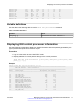
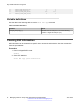
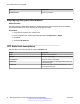
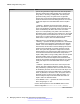
Table Of Contents
- Contents
- Chapter 1: Introduction
- Chapter 2: New in this release
- Chapter 3: Fault management fundamentals
- Chapter 4: Key Health Indicators using ACLI
- Chapter 5: Key Health Indicators using EDM
- Chapter 6: Link state change control using ACLI
- Chapter 7: Link state change control using EDM
- Chapter 8: RMON configuration using ACLI
- Chapter 9: RMON configuration using EDM
- Enabling RMON globally
- Enabling RMON on a port or VLAN
- Enabling RMON1 history
- Disabling RMON1 history
- Viewing RMON1 history statistics
- Creating an RMON1 alarm
- Creating an RMON1 port history alarm
- Viewing RMON1 alarms
- Deleting an RMON1 alarm
- Creating a default RMON1 event
- Creating a nondefault RMON1 event
- Viewing RMON1 events
- Viewing the RMON log
- Deleting an event
- Viewing the protocol directory
- Viewing the data source for protocol distribution statistics
- Viewing protocol distribution statistics
- Viewing the host interfaces enabled for monitoring
- Viewing address mappings
- Viewing the data source for host statistics
- Viewing network host statistics
- Viewing application host statistics
- Chapter 10: Viewing statistics using ACLI
- Chapter 11: Viewing statistics using EDM
- Chapter 12: Log and trap fundamentals
- Chapter 13: Log configuration using ACLI
- Chapter 14: Log configuration using EDM
- Chapter 15: SNMP trap configuration using ACLI
- Chapter 16: SNMP trap configuration using EDM
- Chapter 17: RMON alarm variables
- Glossary

kmalloc-256 352 351 256 16 1 22 22
kmalloc-128 896 895 128 32 1 28 28
kmalloc-64 5120 5120 64 64 1 80 80
kmalloc-32 896 883 32 128 1 7 7
kmalloc-16 1536 1535 16 256 1 6 6
kmalloc-8 2560 2558 8 512 1 5 5
kmalloc-192 273 273 192 21 1 13 13
kmalloc-96 966 900 96 42 1 23 23
Variable definitions
Use the data in the following table to use the show khi performance command.
Table 1: Variable definitions
Variable Value
{slot[-slot][,...]} Specifies the slot number. Valid slot is 1.
Displaying KHI control processor information
Use the following commands to display key health information about the packets generated by the
type of packets and protocols received on a port.
Procedure
1. Log on to the switch to enter User EXEC mode.
2. Display statistics for control packets that go to the control processor:
show khi cpp port-statistics [{slot/port[/sub-port][-slot/port[/sub-
port]][,...]}]
Example
Switch:1>show khi cpp port-statistics 3/1-3/7
================================================================================
KHI CPP Details - Port Statistics
================================================================================
Ports Packet Type Rx Packets Tx Packets
--------------------------------------------------------------------------------
-
3/1 LLC_TDP(134) 498 498
3/1 LLC_ISIS(137) 420 421
3/2 LLC_TDP(134) 498 498
3/4 Ether2_ARP_Request(10) 0 1
3/4 Ether2_IPv4_PIM_MC(24) 0 101
3/4 Ether2_IPv4_OSPF_MC(32) 318 320
3/4 Ether2_IPv4_OSPF_UC(34) 5 0
3/4 LLC_TDP(134) 496 496
3/5 Ether2_ARP_Request(10) 4 4
3/5 Ether2_ARP_Other(11) 0 4
3/5 Ether2_IPv4_PIM_MC(24) 0 103
3/5 Ether2_IPv4_OSPF_MC(32) 0 235
3/5 LLC_TDP(134) 374 374
Displaying KHI control processor information
June 2015 Managing Faults on Avaya VSP 7200 Series and 8000 Series 31
Comments on this document? infodev@avaya.com