
Managing Faults on Avaya Virtual Services Platform 7200 Series and 8000 Series Version 4.2.1
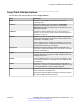
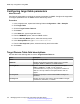
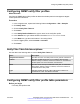

Table Of Contents
- Contents
- Chapter 1: Introduction
- Chapter 2: New in this release
- Chapter 3: Fault management fundamentals
- Chapter 4: Key Health Indicators using ACLI
- Chapter 5: Key Health Indicators using EDM
- Chapter 6: Link state change control using ACLI
- Chapter 7: Link state change control using EDM
- Chapter 8: RMON configuration using ACLI
- Chapter 9: RMON configuration using EDM
- Enabling RMON globally
- Enabling RMON on a port or VLAN
- Enabling RMON1 history
- Disabling RMON1 history
- Viewing RMON1 history statistics
- Creating an RMON1 alarm
- Creating an RMON1 port history alarm
- Viewing RMON1 alarms
- Deleting an RMON1 alarm
- Creating a default RMON1 event
- Creating a nondefault RMON1 event
- Viewing RMON1 events
- Viewing the RMON log
- Deleting an event
- Viewing the protocol directory
- Viewing the data source for protocol distribution statistics
- Viewing protocol distribution statistics
- Viewing the host interfaces enabled for monitoring
- Viewing address mappings
- Viewing the data source for host statistics
- Viewing network host statistics
- Viewing application host statistics
- Chapter 10: Viewing statistics using ACLI
- Chapter 11: Viewing statistics using EDM
- Chapter 12: Log and trap fundamentals
- Chapter 13: Log configuration using ACLI
- Chapter 14: Log configuration using EDM
- Chapter 15: SNMP trap configuration using ACLI
- Chapter 16: SNMP trap configuration using EDM
- Chapter 17: RMON alarm variables
- Glossary

Configuring SNMP notify filter profiles
About this task
Configure the SNMP table of filter profiles to determine whether particular management targets
receive particular notifications.
Procedure
1. In the navigation tree, expand the following folders: Configuration > Edit > SnmpV3.
2. Click Notify Table.
3. Click the Notify Filter Table tab.
4. Click Insert.
5. In the NotifyFilterProfileName box, type a name for the notify filter profile.
6. In the Subtree box, type subtree location information in x.x.x.x.x.x.x.x.x.x. format.
7. In the Mask box, type the mask location in hex string format.
8. From the Type options, select included or excluded.
9. Click Insert.
Notify Filter Table field descriptions
Use the data in the following table to use the Notify Filter Table tab.
Name
Description
NotifyFilterProfileName Specifies the name of the filter profile used to generate notifications.
Subtree Specifies the MIB subtree that, if you combine it with the mask,
defines a family of subtrees, which are included in or excluded from
the filter profile. For more information, see RFC2573.
Mask Specifies the bit mask (in hexadecimal format) that, in combination
with Subtree, defines a family of subtrees, which are included in or
excluded from the filter profile.
Type Indicates whether the family of filter subtrees are included in or
excluded from a filter. The default is included.
Configuring SNMP notify filter profile table parameters
Before you begin
• The notify filter profile exists.
Configuring SNMP notify filter profiles
June 2015 Managing Faults on Avaya VSP 7200 Series and 8000 Series 107
Comments on this document? infodev@avaya.com