
Manual







ETC Supplement
Eos Family v2.2.0
Eos Family Operations Manual Supplement Page 3 Electronic Theatre Controls, Inc.
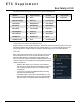
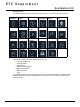
This table lists the tab number for each of the Control and Display tabs.
Focus Rules for Control and Display Tabs
Single clicking on a Controls Tab will bring it to the front of the frame but will not move focus to that
tab unless the tab’s frame already has focus. Double clicking on a Controls Tab will bring it to the
front and grab focus. Single clicking on a Display Tab will bring it to the front and grab focus.
Tab Tools
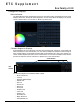
Every frame has a tab tools menu in the lower left corner of the
frame. Selecting this menu icon will open the tab tools menu,
which provides options for opening and closing tabs in that
frame. You can left click with a mouse or double tap a tab in focus
to also see this menu. Most options are self-explanatory with the
following exceptions:
• “Replace Tab” allows you to close the current tab and
choose from the Home Screen which display to replace it
with. Pressing escape will return you to the previously
selected tab.
• “Lock Frame” prevents any additional tabs from being
opened in the selected frame.
• “Open New Tabs In This Frame” specifies that any new
tabs opened will automatically open in the specified frame.
Only one frame can have this option selected at a time.
1 Channels 11 Show Control List 21 Curve List 31 Lamp Controls
2 Playback Status Display 12 Patch 22 Intensity Palettes 99 Diagnostics
3 Magic Sheet Display 13 Effect List 23 Focus Palettes
4 Direct Selects 14 Magic Sheet List 24 Color Palettes
5 ML Controls 15 Submaster List 25 Beam Palettes
6 Effect Status 16 Cue List Index 26 Preset List
7 Virtual Keyboard 17 Group List 27 Color Picker
8 Effect Channels 18 Macro List 28 Virtual Faders
9 Pixel Map List 19 Snapshot List 29 About
10 Pixel Map Preview 20 Park 30 Command History