
Operation Manual


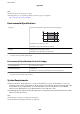


Table Of Contents
- Contents
- About This Manual
- Important Instructions
- Printer Basics
- Network Settings
- Network Connection Types
- Connecting to a Computer
- Connecting to a Smart Device
- Making Wi-Fi Settings from the Printer
- Checking the Network Connection Status
- Printing a Network Status Sheet
- Replacing or Adding New Access Points
- Changing the Connection Method to a Computer
- Changing the Network Connection to Ethernet from the Control Panel
- Disabling Wi-Fi from the Control Panel
- Disconnecting Wi-Fi Direct (Simple AP) Connection from the Control Panel
- Restoring the Network Settings from the Control Panel
- Preparing the Printer
- Printing
- Printing from the Printer Driver on Windows
- Accessing the Printer Driver
- Printing Basics
- Printing on 2-Sides
- Printing Several Pages on One Sheet
- Printing and Stacking in Page Order (Reverse Order Printing)
- Printing a Reduced or Enlarged Document
- Printing One Image on Multiple Sheets for Enlargement (Creating a Poster)
- Printing with a Header and Footer
- Printing a Watermark
- Printing Multiple Files Together
- Printing Using the Color Universal Print Feature
- Adjusting the Print Color
- Printing to Emphasize Thin Lines
- Printing Clear Bar Codes
- Canceling Printing
- Menu Options for the Printer Driver
- Printing from the Printer Driver on Mac OS
- Printing Basics
- Printing on 2-Sides
- Printing Several Pages on One Sheet
- Printing and Stacking in Page Order (Reverse Order Printing)
- Printing a Reduced or Enlarged Document
- Adjusting the Print Color
- Canceling Printing
- Menu Options for the Printer Driver
- Making Operation Settings for the Mac OS Printer Driver
- Printing from Smart Devices
- Canceling the Ongoing Job
- Printing from the Printer Driver on Windows
- Copying
- Scanning
- Faxing
- Replacing Ink Cartridges and Other Consumables
- Checking the Status of the Remaining Ink and the Maintenance Box
- Ink Cartridge Codes
- Ink Cartridge Handling Precautions
- Replacing Ink Cartridges
- Maintenance Box Code
- Maintenance Box Handling Precautions
- Replacing a Maintenance Box
- Temporarily Printing with Black Ink
- Conserving Black Ink when the Black Ink Is Low (for Windows Only)
- Maintaining the Printer
- Network Service and Software Information
- Application for Configuring Printer Operations (Web Config)
- Application for Scanning Documents and Images (Epson Scan 2)
- Application for Configuring Scanning Operations from the Control Panel (Epson Event Manager)
- Application for Configuring Fax Operations and Sending Faxes (FAX Utility)
- Application for Sending Faxes (PC-FAX Driver)
- Application for Laying Out Photos (Epson Easy Photo Print)
- Application for Printing Web Pages (E-Web Print)
- Application for Scanning and Transferring Images (Easy Photo Scan)
- Software Update Tools (EPSON Software Updater)
- Application for Configuring Multiple Devices (EpsonNet Config)
- Installing the Latest Applications
- Updating the Printer's Firmware using the Control Panel
- Uninstalling Applications
- Printing Using a Network Service
- Solving Problems
- Checking the Printer Status
- Checking the Software Status
- Removing Jammed Paper
- Paper Does Not Feed Correctly
- Power and Control Panel Problems
- Cannot Print from a Computer
- When You Cannot Make Network Settings
- Cannot Print from an iPhone or iPad
- Printout Problems
- Printout is Scuffed or Color is Missing
- Banding or Unexpected Colors Appear
- Colored Banding Appears at Intervals of Approximately 3.3 cm
- Blurry Prints, Vertical Banding, or Misalignment
- Print Quality is Poor
- Paper Is Smeared or Scuffed
- Paper is Smeared During Automatic 2-Sided Printing
- Printed Photos are Sticky
- Images or Photos are Printed in Unexpected Colors
- Cannot Print Without Margins
- Edges of the Image are Cropped During Borderless Printing
- The Position, Size, or Margins of the Printout Are Incorrect
- Printed Characters Are Incorrect or Garbled
- The Printed Image Is Inverted
- Mosaic-Like Patterns in the Prints
- Uneven Colors, Smears, Dots, or Straight Lines Appear in the Copied Image
- Moiré (Cross-Hatch) Patterns Appear in the Copied Image
- An Image of the Reverse Side of the Original Appears in the Copied Image
- The Printout Problem Could Not be Cleared
- Other Printing Problems
- Cannot Start Scanning
- Scanned Image Problems
- Uneven Colors, Dirt, Spots, and so on Appear when Scanning from the Scanner Glass
- Straight Lines Appear when Scanning from ADF
- The Image Quality Is Rough
- Offset Appears in the Background of Images
- Text is Blurred
- Moiré Patterns (Web-Like Shadows) Appear
- Cannot Scan the Correct Area on the Scanner Glass
- Text is Not Recognized Correctly when Saving as a Searchable PDF
- Cannot Solve Problems in the Scanned Image
- Other Scanning Problems
- Problems when Sending and Receiving Faxes
- Cannot Send or Receive Faxes
- Cannot Send Faxes
- Cannot Send Faxes to a Specific Recipient
- Cannot Send Faxes at a Specified Time
- Cannot Receive Faxes
- Memory Full Error Occurs
- Sent Fax Quality Is Poor
- Faxes Are Sent at the Wrong Size
- Received Fax Quality Is Poor
- Received Faxes Are Not Printed
- Pages are Blank or only a Small Amount of Text is Printed on the Second Page in Received Faxes
- Other Faxing Problems
- Other Problems
- Appendix

Note:
❏ Check the label on the printer for its voltage.
❏ For European users, see the following Website for details on power consumption.
http://www.epson.eu/energy-consumption
Environmental Specications
Operation Use the printer within the range shown in the following graph.
Temperature: 10 to 35°C (50 to 95°F)
Humidity: 20 to 80% RH (without condensation)
Storage
Temperature: -20 to 40°C (-4 to 104°F)
*
Humidity: 5 to 85% RH (without condensation)
* You can store for one month at 40°C (104°F).
Environmental Specications for Ink Cartridges
Storage Temperature
-30 to 40 °C (-22 to 104 °F)
*
Freezing Temperature -16 °C (3.2 °F)
Ink thaws and is usable after approximately 3 hours at 25 °C (77 °F).
* You can store for one month at 40 °C (104 °F).
System Requirements
❏ Windows 10 (32-bit, 64-bit)/Windows 8.1 (32-bit, 64-bit)/Windows 8 (32-bit, 64-bit)/Windows 7 (32-bit, 64-
bit)/Windows Vista (32-bit, 64-bit)/Windows XP SP3 or later (32-bit)/Windows XP Professional x64 Edition SP2
or later/Windows Server 2016/Windows Server 2012 R2/Windows Server 2012/Windows Server 2008 R2/
Windows Server 2008/Windows Server 2003 R2/Windows Server 2003 SP2 or later
❏ macOS High Sierra/macOS Sierra/OS X El Capitan/OS X Yosemite/OS X Mavericks/OS X Mountain Lion/Mac
OS X v10.7.x/Mac OS X v10.6.8
Note:
❏ Mac OS may not support some applications and features.
❏ e UNIX File System (UFS) for Mac OS is not supported.
User's Guide
Appendix
217