
Operation Manual




Note:
❏ You can also access Fax Settings from Web Cong. Click the Fax tab on the Web Cong screen.
❏ When you use Web
Cong
to display the Fax Settings menu, there may be slight
dierences
in the user interface and in
location compared to the printer's control panel.
Quick Operation Button Menu
You can nd the menu on the printer's control panel below:
Settings > General Settings > Fax Settings > Quick Operation Button
Note:
You cannot display this menu on the Web Cong screen.
Item Description
Quick Operation Button
1
Registers up to three shortcuts allowing you to quickly access the menu you use often when
sending faxes. The shortcuts are located at the top of the Fax Settings tab in Fax.
Quick Operation Button
2
Quick Operation Button
3
Send Settings Menu
You can nd the menu on the printer's control panel below:
Settings > General Settings > Fax Settings > Send Settings
Note:
On the Web Cong screen, you can nd the menu below:
Fax tab > Send Settings > Basic
Item Description
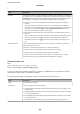
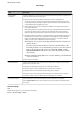
PC to FAX Function This item is displayed on the Web Cong screen only. Enables sending faxes using a client
computer.
Batch Send When there are multiple faxes waiting to be sent to the same recipient, this groups them
together to send them at once. Up to
ve
documents (up to 100 pages in total) can be sent at
one time. This helps you save on transmission costs by reducing the number of connection
times.
Save Failure Data Saves documents that failed to be sent in the printer's memory. You can resend the documents
from the Job/Status.
Related Information
& “Enabling Sending Faxes from a Computer” on page 162
Administrator's Guide
Fax Settings
164