
Operation Manual


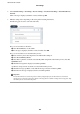


❏ To forward received faxes to emails, shared folders, and other fax machines:
A
Select Forward.
B
Select Ye s . To print the documents automatically while forwarding them, select Yes an d Pri nt instead.
C
Select Add Entry, and then select forwarding destinations from the contacts list. You can specify up to
ve forwarding destinations.
D
Tap Close to nish selecting forwarding destinations, and then tap Close.
E
In Options When Forwarding Failed, select whether to print received documents or save them in the
printer's Inbox when forwarding fails.
c
Important:
When the Inbox is full, receiving faxes is disabled. You should delete the documents from the inbox once they
have been checked.
Note:
e number of documents that have failed to be forwarded is displayed on the
on the home screen, in addition to
other unprocessed jobs.
4. You can set the printer to send emails to a person to whom you want to notify the results of processing faxes.
Select Email Notications, specify a recipient for the email, and then set the options below.
e
following options can be used at the same time.
❏ Notify on Receive: sends emails to the recipient when the printer has nished receiving faxes.
❏ Notify on Print: sends emails to the recipient when the printer has nished printing received faxes.
❏ Notify on Save: sends emails to the recipient when the printer has
nished
saving received documents to
the memory device.
❏ Notify on Forward: sends emails to the recipient when the printer has nished forwarding received faxes.
5. Tap Close to complete the Unconditional Save/Forward settings.
is
is the end of making unconditional saving and forwarding settings to receive faxes.
6. Select Common Settings as necessary.
For details, see the explanation for Common Settings in Settings > General Settings > Fax Settings >
Receive Settings > Save/Forward Settings.
Note:
If you have selected a shared folder on a network or an email address as the forwarding destination, we recommend that you
test if you can send a scanned image to the destination in the scan mode. Select Scan > Email, or Scan > Network
Folder/FTP from the home screen, select the destination, and then start scanning.
Related Information
& “Network Connection” on page 19
& “Setting the Server or the Shared Folder” on page 38
& “Features to Save and Forward Received Faxes Without Condition” on page 156
& “Making Save to Computer Setting to Receive Faxes” on page 163
& “Making Save to Computer Setting to Also Print on the Printer to Receive Faxes” on page 163
& “Making Save to Computer Setting not to Receive Faxes” on page 163
& “Save/Forward Settings Menu” on page 165
Administrator's Guide
Fax Settings
158