
Operation Manual





Printing a Network Status Sheet
You can check the detailed network information by printing it.
1. Load papers.
2. Select Settings on the home screen.
To select an item, move the focus to the item using the
u
d
l
r
buttons, and then press the OK button.
3. Select General Settings > Network Settings > Network Status.
4. Select Print Status Sheet.
5. Check the message, and then print the network status sheet.
6.
Close the screen.
e screen automatically closes aer a specic length of time.
Checking the Communication between Devices and Computers
Checking the Communication Using a Ping Command - Windows
You can use a Ping command to make sure the computer is connected to the printer. Follow the steps below to
check the communication using a Ping command.
1. Check the printer's IP address for the communication that you want to check.
You can check this from the Network Status screen on the printer's control panel, a connection report, or the
IP Address column of a network status sheet.
2. Display the computer's command prompt screen.
Display the application screen, and then select Command Prompt.
3. Enter ‘ping xxx.xxx.xxx.xxx', and then press the Enter key.
Enter the printer's IP address for xxx.xxx.xxx.xxx.
4. Check the communication status.
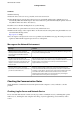
If the printer and the computer are communicating, the following message is displayed.
Administrator's Guide
Solving Problems
70