
Operation Manual






Connecting to Ethernet
Connect the printer to the network by using the Ethernet cable, and check the connection.
1. Connect the printer and hub (LAN switch) by Ethernet cable.
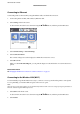
2. Select Settings on the home screen.
To select an item, move the focus to the item using the
u
d
l
r
buttons, and then press the OK button.
3. Select General Settings > Network Settings.
4. Select Connection Check.
e connection diagnosis result is displayed. Conrm the connection is correct.
5. Select OK to
nish.
When you select Print Check Report, you can print the diagnosis result. Follow the on-screen instructions to
print it.
Related Information
& “Changing from Ethernet Connection to Wi-Fi Connection” on page 83
Connecting to the Wireless LAN (Wi-Fi)
You can manually set up the information necessary to connect to an access point from the printer's control panel.
To set up manually, you need the SSID and password for an access point.
Note:
When the access point supports WPS, you can automatically make the Wi-Fi connection settings by using the push button or
PIN code, without using the SSID and password.
1. Select Wi - F i on the home screen.
To select an item, move the focus to the item using the
u
d
l
r
buttons, and then press the OK button.
2. Select Router.
Administrator's Guide
Network Connection
24