
Operation Manual


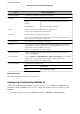


Status ID IEEE802.1X Status
Timeout Error Authentication has failed since there is no answer from the RADIUS server and/or
authenticator.
User ID Error Authentication has failed since the printer's user ID and/or certicate protocol is
incorrect.
Server ID Error Authentication has failed since the server ID of the server certicate and the
server's ID do not match.
Server Certicate Error Authentication has failed since there are the following errors in the server
certicate.
❏ The server certicate is out of date.
❏ The chain of the server certicate is incorrect.
CA Certicate Error Authentication has failed since there are the following errors in a CA certicate.
❏ Specied CA certicate is incorrect.
❏ The correct CA
certicate
is not imported.
❏ CA certicate is out of date.
EAP Failure Authentication has failed since there are the following errors in the printer
settings.
❏ If EAP Type is EAP-TLS or PEAP-TLS, client certicate is incorrect or has
certain problems.
❏ If EAP Type is PEAP/MSCHAPv2, user ID or password is not correct.
Solving Problems for Advanced Security
Restoring the Security Settings
When you establish a highly secure environment such as IPsec/IP Filtering or IEEE802.1X, you may not be able to
communicate with devices because of incorrect settings or trouble with the device or server. In this case, restore
the security settings in order to make settings for the device again or to allow you temporary use.
Disabling the Security Function Using the Control Panel
You can disable IPsec/IP Filtering or IEEE802.1X using the printer's control panel.
1. Select Settings > General Settings > Network Settings.
2. Select Advanced.
3. Select from the following items that you want to disable.
❏ Disable IPsec/IP Filtering
❏ Disable IEEE802.1X
4. Select Proceed on the conrmation screen.
Administrator's Guide
Advanced Security Settings for Enterprise
126