
Operation Manual



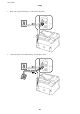


5. Click Preview.
e preview window opens.
Note:
If you have place originals in the ADF, the rst page of the originals is ejected when the preview is nished. Place your
rst document page on top of the rest of the pages, and then load the entire original into the ADF.
6. Check the preview, and adjust the image as necessary.
Note:
You can make various image adjustments such as improving the color, sharpness, and contrast.
7. Click Scan.
8. In the File Save Settings window, make appropriate settings and then click OK.
e scanned image is saved in the specied folder.
Note:
When you select PDF as the Image Format setting, you can set a password to protect the
le.
Click Options, select the
Security tab, and then make settings.
Related Information
& “Placing Originals” on page 53
& “EPSON Scan (Scanner Driver)” on page 142
Smart Devices Scanning
By using the Epson iPrint application you can scan photos and documents from smart devices such as
smartphones or tablets. To use Epson iPrint, install it on your smartphone or tablet.
Visit the following website for more details.
http://ipr.to/c
User's Guide
Scanning
94