
Operation Manual




& “Loading Paper in the Rear Paper Feed” on page 48
& “Loading Paper in the Front Paper Feed Slot” on page 50
& “Printing Basics - Windows” on page 60
Printing to Fit the Paper Size - Mac OS X
1.
Load paper in the printer.
2. Open the le you want to print.
3. Access the printer driver window.
4.
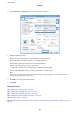
Select the size of the paper you set in the application as the Paper Size setting.
5. Select Paper Handling from the pop-up menu.
6. Select Scale to t paper size.
7. Select the paper size you loaded in the printer as the Destination Paper Size setting.
8. Set the other items as necessary.
9. Click Print.
Related Information
& “Loading Paper in the Paper Cassette” on page 46
& “Loading Paper in the Rear Paper Feed” on page 48
& “Loading Paper in the Front Paper Feed Slot” on page 50
& “Printing Basics - Mac OS X” on page 62
Printing Multiple Files Together (for Windows Only)
Job Arranger Lite allows you to combine several les created by dierent applications and print them as a single
print job. You can specify the print settings for combined
les,
such as layout, print order, and orientation.
Note:
To open a Print Project saved in Job Arranger Lite, click Job Arranger Lite on the printer driver's Maintenance tab. Next,
select Open from the File menu to select the le. e extension of the saved les is "ecl".
1. Load paper in the printer.
User's Guide
Printing
68