
Operation Manual
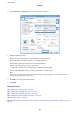




8. Click Print.
For manual 2-sided printing, when the rst side has nished printing, a pop-up window is displayed on the
computer. Follow the on-screen instructions.
Related Information
& “Loading Paper in the Paper Cassette” on page 46
& “Loading Paper in the Rear Paper Feed” on page 48
& “Loading Paper in the Front Paper Feed Slot” on page 50
& “Printing Basics - Windows” on page 60
Printing on 2-Sides - Mac OS X
1. Load paper in the printer.
2. Open the
le
you want to print.
3. Access the printer driver window.
4. Select Two-sided Printing Settings from the pop-up menu.
5.
Select the bindings and Document Type.
Note:
❏ Printing may be slow depending on the Document Type setting.
❏ If you are printing high-density data such as photos or graphs, select Text & Graphi cs or Te xt & Photo s as the
Document Type setting. If scung occurs or the image bleeds through to the reverse side, adjust the print density
and ink drying time by clicking the arrow mark next to Adjustments.
6. Set the other items as necessary.
7. Click Print.
Related Information
&
“Loading Paper in the Paper Cassette” on page 46
&
“Loading Paper in the Rear Paper Feed” on page 48
&
“Loading Paper in the Front Paper Feed Slot” on page 50
&
“Printing Basics - Mac OS X” on page 62
User's Guide
Printing
65