
Operation Manual
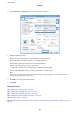




5. Select Preferences or Properties to access the printer driver window.
6. Make the following settings.
❏ Paper Source: Select the paper source in which you loaded the paper.
❏ Document Size: Select the paper size you set in the application.
❏ Orientation: Select the orientation you set in the application.
❏ Paper Type: Select the type of paper you loaded.
Make sure you select the correct paper type to optimize the print quality.
❏ Color: Select Grayscale when you want to print in black or shades of gray.
Note:
If you are printing high-density data on plain paper, letterhead, or preprinted paper, select Standard-Vivid as the
Quality setting to make your printout vivid.
7. Click OK to close the printer driver window.
8. Click Print.
Related Information
& “Available Paper and Capacities” on page 42
& “Loading Paper in the Paper Cassette” on page 46
& “Loading Paper in the Rear Paper Feed” on page 48
&
“Loading Paper in the Front Paper Feed Slot” on page 50
&
“List of Paper Types” on page 45
&
“Authenticating Users in the Printer Driver when User Feature Restriction Is Enabled (for Windows Only)” on
page 60
User's Guide
Printing
61