
Operation Manual


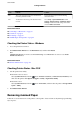


Code Problem Solution
425 There is not enough storage space available in the
forwarding destination folder.
Increase the storage space in the forwarding
destination folder.
428 The destination was wrong or the destination does
not exist.
Select Setup > System Administration > Fax
Settings > Output Settings > Fax Output > Other
Settings, and then check the settings of the folder
selected in Where to Forward.
Related Information
& “Connecting to a Phone Line” on page 95
& “Scan Mode” on page 26
& “Fax Settings” on page 36
&
“Available Paper and Capacities” on page 42
Checking the Printer Status - Windows
1. Access the printer driver window.
2. Click EPSON Status Monitor 3 on the Maintenance tab, and then click Details.
Note:
If EPSON Status Monitor 3 is disabled, click Extended Settings on the Maintenance tab, and then select Enable
EPSON Status Monitor 3.
Related Information
& “Windows Printer Driver” on page 138
Checking Printer Status - Mac OS X
1.
Start the printer driver utility:
❏ Mac OS X v10.6.x to v10.9.x
Select System Preferences from the
menu > Printers & Scanners (or Print & Scan, Print & Fax), and
then select the printer. Click Options & Supplies > Utility > Open Printer Utility.
❏ Mac OS X v10.5.8
Select System Preferences from the
menu > Print & Fax, and then select the printer. Click Open Print
Queue > Utility.
2. Click EPSON Status Monitor.
Removing Jammed Paper
Follow the on-screen instructions on the printer's control panel to locate and remove the jammed paper including
any torn pieces.
User's Guide
Solving Problems
157