
Operation Manual


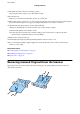


2. Load the Calibration sheet into the product.
Note:
Before loading the Calibration sheet into the scanner, make sure there is no dust or dirt on the Calibration sheet.
3.
Start Epson Scan 2 Utility.
❏ Wind ow s 1 0
Click the start button, and then select All apps > EPSON > Epson Scan 2 > Epson Scan 2 Utility.
❏ Windows 8.1/Windows 8/Windows Server 2012 R2/Windows Server 2012
Start screen > Apps > Epson > Epson Scan 2 Utility.
❏ Windows 7/Windows Vista/Windows XP/Windows Server 2008 R2/Windows Server 2008/Windows Server
2003 R2/Windows Server 2003
Click the start button, and then select All Programs (or Programs) > EPSON > Epson Scan 2 > Epson
Scan 2 Utility.
❏ Mac OS
Select Go > Applications > EPSON Soware > Epson Scan 2 Utility.
4.
Click the Maintenance tab.
5. Click the Calibration button.
Calibration starts. Wait about one minute.
e Calibration sheet is ejected automatically when calibration is complete.
Note:
❏ If performing calibration does not improve the image quality, contact your Epson dealer.
❏ You can use the Calibration sheet more than once.
❏ e Cleaning sheet and the Calibration sheet are available as a Maintenance Sheet from your nearest Epson store.
❏ Calibration does not start if the product's batteries are running low.
Related Information
& “Maintenance Sheet Codes” on page 15
Energy Saving
You can save energy by using the sleep mode or auto power o mode when no operations are performed by the
scanner. You can set the time period before the scanner enters sleep mode and turns o automatically. Any
increase will aect the product’s energy eciency. Consider the environment before making any changes.
User's Guide
Maintenance
72