
Operation Manual






10-2 Replacing Ink Cartridges
Replacing Empty Ink Cartridges
Using the control panel
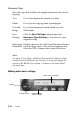
The Stylus Scan’s Error light and panel message will inform you
when it is time to get a replacement ink cartridge ready, and when
it is time to make replace the ink cartridges.
Note:
If an ink cartridge is damaged or old, you may need to replace it before
even before it runs out of ink. For information, see “Replacing an Old
or Damaged Ink Cartridge” on page 10-9.
This table explains what the status of the Error light and LCD
panel message on your Stylus Scan mean and what actions you
need to take.
Error
Light
Message Action
Off Black Ink
Low
The black ink cartridge is running low. Have a new
black ink cartridge ready. (You can replace the
cartridge now, or you can wait until it is empty.)
Flashing Black Ink
Out
The blank ink cartridge is empty. Replace it with a
new black ink cartridge.
Off Color Ink
Low
The color ink cartridge is running low. Have a new
color ink cartridge ready. (You can replace the
cartridge now, or you can wait until it is empty.)
Flashing Color Ink
Out
The color ink cartridge is empty. Replace it with a new
black ink cartridge.