
Operation Manual





Scanner 8-13
Execute Scan Button automatically
When this check box is selected, the assigned application will
automatically open and the scanned image is sent to the
application when you press the
Scan button. When this check
box is cleared, no application is assigned to the
Scan button
and only the Page Manager will appear when the
Scan button
is pressed. Then you can select an application from the Scan
Buttons bar.
Adding Applications to the Scan Buttons Bar
You can add applications on the Application bar at the bottom of
the PageManager window to the Scan Buttons bar. Follow the
steps below.
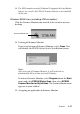
1. Select Scan Buttons Setting from the File menu. The
following dialog box appears.
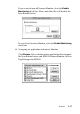
2. Click the arrow next to the Scan to box and select an
application you want to add to the Scan Buttons bar. Make
the appropriate scanning settings for the application and click
OK.