
Basic Operation Guide Printer RX700


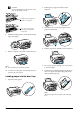


Table Of Contents
- Safety Instructions
- Using the Control Panel
- Basic Copying
- Copying on CD/DVD
- Printing Directly from a Memory Card - Basic Printing
- Printing Directly from a Memory Card - Printing Options
- Printing a Single Photo
- Printing Multiple Photos onto One Sheet
- Printing Enlarged Images
- Printing Photo Stickers
- Printing on CD/DVD
- Printing a CD Jacket
- Printing on EPSON Iron-On Cool Peel Transfer Paper
- Printing Using a Combo Printing Sheet
- Printing with DPOF Functions
- Printing with Photo Frames
- Changing Print Settings
- Printing from Film
- Scanning to a Memory Card
- Printing Directly from a Digital Camera
- Printing Directly from an External Device
- Replacing Ink Cartridges
- Maintenance and Transporting
- Troubleshooting
- Customer Support
- Product Specifications
- Summary of Panel Settings
- Index

Basic Copying 5
English
Basic Copying
Overview of the Basic
Procedure
1. Press the Copy button.
2. Load appropriate paper.
& See “Loading Paper” of the next section
3. Place the original document.
& See “Placing a Photo or Document on the
Document Table” on page 7
4. Change the copy layout if necessary.
& See “Changing the Copy Layout” on page 8
5. You can change the copy settings if necessary.
& See “Changing Copy Settings” on page 9
6. Press the x Color button to copy in color, or
x B&W button to copy in grayscale.
Note:
❏ If you need to stop copying, press the y Stop
button.
❏ Do not pull the paper out of this product.
❏ If the edge of the document is not copied correctly,
place the document slightly away from the edge
of the document table.
c
Caution:
Never open the scanner unit while scanning or
copying; otherwise, you may damage this product.
Loading Paper
Note:
❏ Always load paper before you start printing.
❏ The print result is affected by the kind of paper you
use. For the best quality, use the appropriate paper.
❏ Keep enough space in front of this product for paper
to be fully ejected.
❏ Make sure the CD/DVD tray is not inserted in this
product and the CD/DVD guide is closed.
Loading A4 plain paper into the
front tray
Note:
Only A4 plain paper can be loaded into the front tray.
When loading paper other than A4 plain paper, load into
the back tray.
1. Open the front cover by pressing the hollow
portion as illustrated.
2. Fan a stack of paper, then tap it on a flat surface
to even the edges.
3. Load the paper with the printable side facing
down flash with the right edge guide. Then, slide
the paper into the front tray so that the edge of the
paper is level with the guideline on the front tray.