
Basic Operation Guide Printer RX700


Table Of Contents
- Safety Instructions
- Using the Control Panel
- Basic Copying
- Copying on CD/DVD
- Printing Directly from a Memory Card - Basic Printing
- Printing Directly from a Memory Card - Printing Options
- Printing a Single Photo
- Printing Multiple Photos onto One Sheet
- Printing Enlarged Images
- Printing Photo Stickers
- Printing on CD/DVD
- Printing a CD Jacket
- Printing on EPSON Iron-On Cool Peel Transfer Paper
- Printing Using a Combo Printing Sheet
- Printing with DPOF Functions
- Printing with Photo Frames
- Changing Print Settings
- Printing from Film
- Scanning to a Memory Card
- Printing Directly from a Digital Camera
- Printing Directly from an External Device
- Replacing Ink Cartridges
- Maintenance and Transporting
- Troubleshooting
- Customer Support
- Product Specifications
- Summary of Panel Settings
- Index
Troubleshooting 45
English
The Copied Image Is Improperly
Sized
When Auto Fit Page is selected as the Zoom setting
on the LCD panel and the border of the original
document is white or very light, the size of the
original might not be recognized correctly. This may
cause the copied image to be improperly sized. To
correct this, select Actual as the Zoom setting and
then use the Optional zoom setting to adjust the size
of the copied image.
The Printout Is Blurry or Smeared
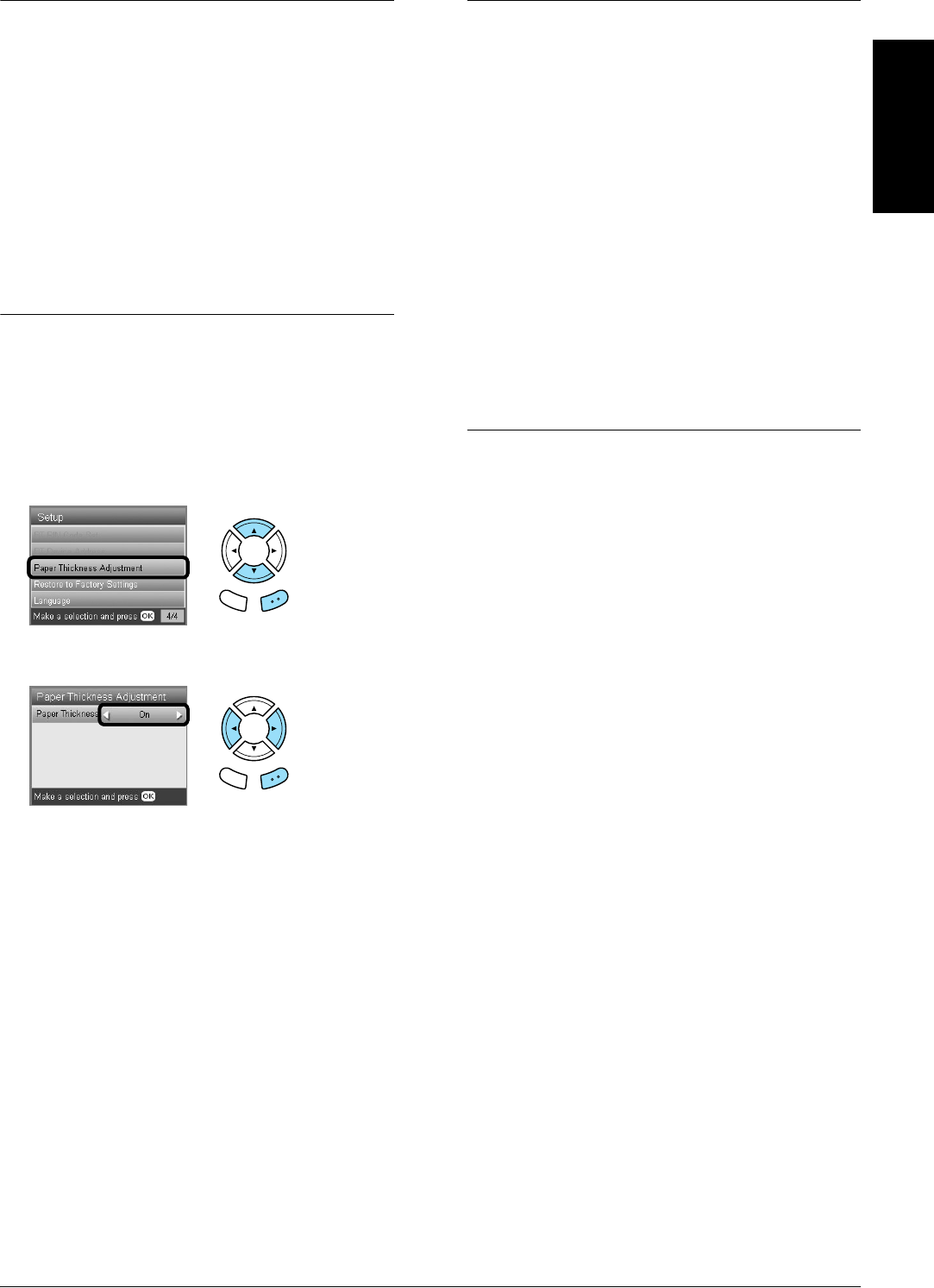
If the printout is blurry or smeared, adjust the paper
thickness.
1. Press the Setup button.
2. Select Paper Thickness Adjustment.
3. Select On.
Note:
The Paper Thickness Adjustment setting is set to On until
this product is turned off. The setting returns to Off the
next time this product is turned on.
A Message Prompting You to
Format the Memory Card
Appears
If the message prompts you to format the memory
card appears on the LCD panel, press the OK button
to format the memory card.
c
Caution:
All data on a memory card is deleted when you
format the memory card.
Cancelling the format
Press the Cancel button to cancel format, and then
exchange it with a formatted one.
The Terms on the LCD Panel Are
Is Not Displayed in Your
Language
If the language displayed on the LCD panel is not the
one you want to display, select the language you
want from the Setup menu. See “Changing the
language displayed on the LCD panel” on page 43
for details.
Back OK
Back OK