
Basic Operation Guide Printer RX700


Table Of Contents
- Safety Instructions
- Using the Control Panel
- Basic Copying
- Copying on CD/DVD
- Printing Directly from a Memory Card - Basic Printing
- Printing Directly from a Memory Card - Printing Options
- Printing a Single Photo
- Printing Multiple Photos onto One Sheet
- Printing Enlarged Images
- Printing Photo Stickers
- Printing on CD/DVD
- Printing a CD Jacket
- Printing on EPSON Iron-On Cool Peel Transfer Paper
- Printing Using a Combo Printing Sheet
- Printing with DPOF Functions
- Printing with Photo Frames
- Changing Print Settings
- Printing from Film
- Scanning to a Memory Card
- Printing Directly from a Digital Camera
- Printing Directly from an External Device
- Replacing Ink Cartridges
- Maintenance and Transporting
- Troubleshooting
- Customer Support
- Product Specifications
- Summary of Panel Settings
- Index
36 Scanning to a Memory Card
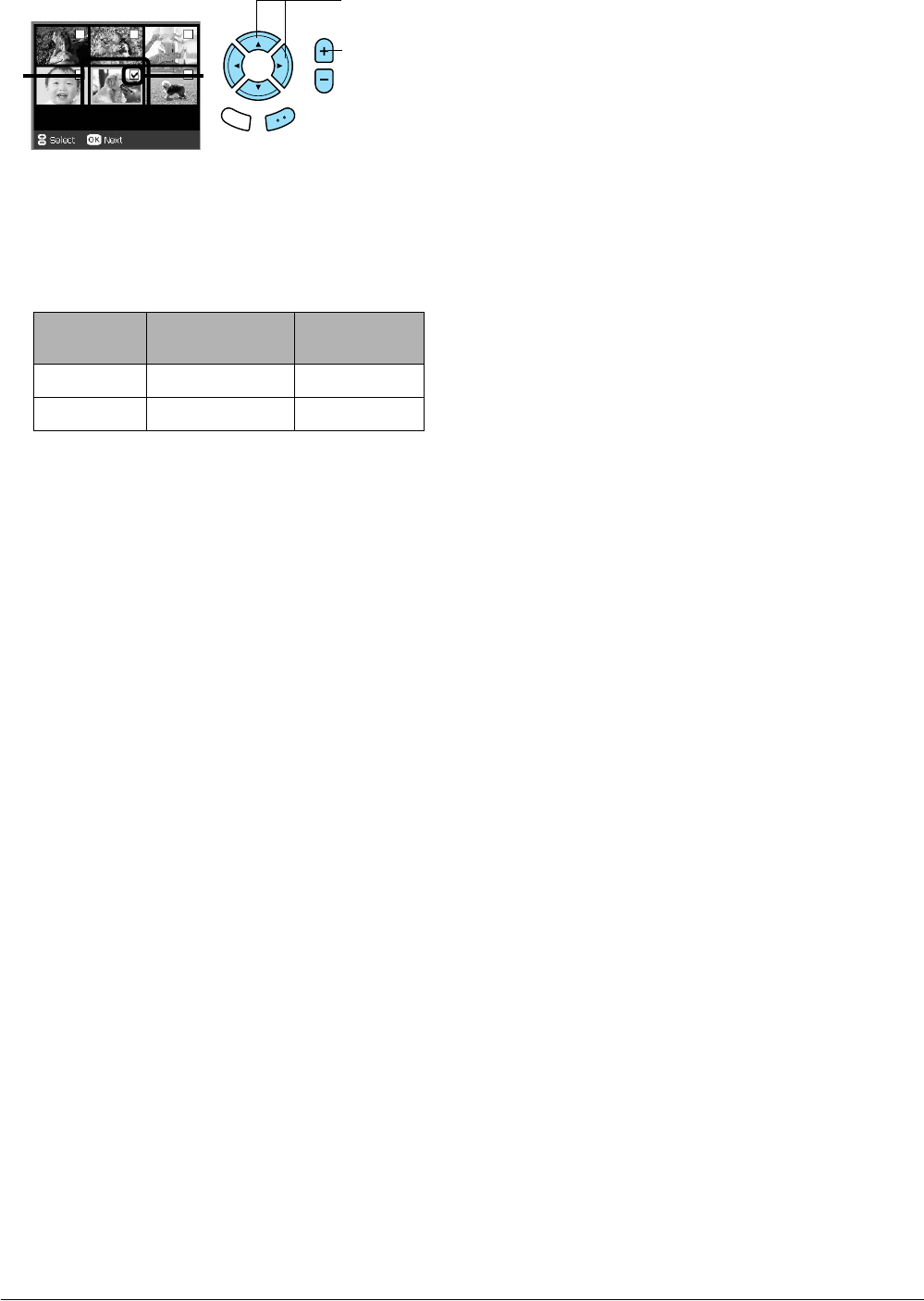
6. Select the desired photo and enter the check
mark of the photo you want to save.
7. Select the Quality option by pressing the l/r
buttons.
Scan quality affects the file size of the images. Be
sure to leave enough space according to the
following table:
8. Press the x Color button to start scanning.
Note:
If you need to stop scanning, press the y Stop button.
Quality Scanning
resolution
Approximate
file size
Text 1200 × 1200 dpi 500 KB
Photo 2400 × 2400 dpi 4.5 MB
1. Select
the desired
photo.
2. Enter
the check
mark.
Back OK
12