
Basic Operation Guide Printer RX700


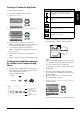

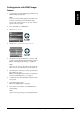


Table Of Contents
- Safety Instructions
- Using the Control Panel
- Basic Copying
- Copying on CD/DVD
- Printing Directly from a Memory Card - Basic Printing
- Printing Directly from a Memory Card - Printing Options
- Printing a Single Photo
- Printing Multiple Photos onto One Sheet
- Printing Enlarged Images
- Printing Photo Stickers
- Printing on CD/DVD
- Printing a CD Jacket
- Printing on EPSON Iron-On Cool Peel Transfer Paper
- Printing Using a Combo Printing Sheet
- Printing with DPOF Functions
- Printing with Photo Frames
- Changing Print Settings
- Printing from Film
- Scanning to a Memory Card
- Printing Directly from a Digital Camera
- Printing Directly from an External Device
- Replacing Ink Cartridges
- Maintenance and Transporting
- Troubleshooting
- Customer Support
- Product Specifications
- Summary of Panel Settings
- Index

Printing Directly from a Memory Card – Printing Options 23
English
7. Select the photo which you want to print and set
the number of copies.
& See “Changing the View of Photos on the LCD
Panel and Selecting Photos” on page 18
Note:
You cannot set the number of images to more than
will fit on one CD/DVD. For example, you cannot
select more than five photos when printing in 4-up
layout.
8. Press the x Color button or x B&W button to
start printing.
Note:
❏ If you need to stop printing, press the y Stop
button.
❏ We recommend that you print a test of the layout
on a test CD/DVD, before printing on a real
CD/DVD.
❏ If necessary, you can adjust the print position.
See “Adjusting the Print Position” on page 14
for details.
❏ If an error message appears on the LCD panel,
follow the instructions on the LCD panel to clear
the error.
❏ The printable area of a CD/DVD is illustrated as
follows.
Printing a CD Jacket
You can print a CD jacket on A4 paper.
1. Load a memory card.
2. Press the Memory Card button.
3. Select Custom Print.
4. Select CD Jacket.
5. Change the print setting.
& See “Changing Print Settings” on page 28
6. Select the photo which you want to print and set
the number of copies.
& See “Changing the View of Photos on the LCD
Panel and Selecting Photos” on page 18
7. Load the appropriate paper.
& See “Loading Paper” on page 5
8. Press the x Color button or x B&W button to
start printing.
Note:
If you need to stop printing, press the y Stop button.
12-cm CD/DVD
Back OK
Back OK