
User Setup Information
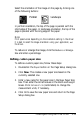

Select the orientation of the image on the page by clicking one
of the following buttons:
In portrait orientation, the top of the page is parallel with the
short edge of the paper. In landscape orientation, the top of the
page is parallel with the long edge of the paper.
Note:
Print speed varies depending on the orientation setting in the driver.
It is best to select the image orientation using your application, not
the driver.
To reduce or enlarge the image, click the Reduce or Enlarge
box and enter a percentage.
Defining custom paper sizes
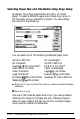
To define a custom paper size, follow these steps:
1.
Doubleclick the Paper button on the Page Setup dialog box.
2.
Click
New.
This creates a new paper size based on the
currently selected one.
3.
Enter a new name for the paper size in the New Paper Size
box. Then enter the correct values in the Width and Height
boxes. Click Inches or cm (centimeters) to change the
measurement units, if necessary.
4.
Click OK to save the new paper size and return to the Page
Setup dialog box.
Installingand Using the Printer Driver
2-15