
Specifications




EPSON Stylus Color 580
8/00 EPSON Stylus Color 580
-
9
5. Make sure letter-size or larger paper is loaded in the printer
and click Print Nozzle Check Pattern (Windows) or
Confirmation (Macintosh). Then follow the instructions
on the screen.
6. See page 8 for details on examining the nozzle check
pattern. If the nozzle check pattern isn’t missing any dots,
click Finish.
If any dots are missing, click Clean and follow the
instructions on the screen to clean the print head again.
If you don’t see any improvement after cleaning three or four
times, check the solutions in your Printer Basics book. You can
also turn the printer off and wait overnight—this allows any
dried ink to soften—and then try cleaning the print head
again.
Aligning the Print Head
If your printouts contain jagged characters or misaligned
vertical lines, you may need to align the print head. Your
printer must be connected directly to your computer, not
connected over a network, to use the Print Head Alignment
utility. Follow these steps for your operating system:
1. Make sure the printer is plugged in but not printing, and
letter-size or larger paper is loaded.
For the best results, load EPSON ink jet paper in the
printer whenever you check the print head alignment.
Don’t use plain, recycled, or photocopier paper.
2. Windows: Right-click the Status Monitor 3 icon on
your Windows taskbar, then select Print Head
Alignment in the menu that appears.
To right-click, place your cursor on the Status Monitor 3
icon and click the right mouse button.
Or, if you have an application running, you can also run the
utility by accessing the printer settings dialog box as
described in your Printer Basics book. Click the Utility tab,
then click the Print Head Alignment button.
Macintosh: Access the printer settings dialog box as
described in your Printer Basics book. Click the Utility
button, then click the Print Head Alignment button.
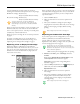
3. Click Next to print an alignment page. You see this
window:
4. On the printed page, select the pattern that shows the two
vertical lines most precisely printed on top of each other.
Select one pattern each for rows 1, 2, and 3. Then enter the
number of the best pattern for each row in the
corresponding boxes on the screen and click Finish.
If there isn’t a precisely aligned pattern, enter the numbers
of the best aligned patterns in each row and click
Realignment. Another alignment page prints with your
selections printed as patterns numbered 8. Repeat step 4 to
select a more precise pattern for each row.
Cleaning the Printer
To keep your printer working at its best, you should clean it
several times a year. Follow these steps:
1. Unplug the printer’s power cord and disconnect the printer
cable.
2. Remove all the paper from the sheet feeder.
3. Clean the exterior of the printer with a soft, damp cloth.
4. Clean ink out of the printer’s interior with a soft, damp
cloth.
Don’t touch the gears inside the printer.
Never use a hard or abrasive brush, or alcohol or thinner
for cleaning; they can damage the printer components
and case.
Don’t get water on the printer components and don’t
spray lubricants or oils inside the printer.
Don’t use any cleaning sheets included with special
media; they may jam inside the printer.