
Operation Guide


Table Of Contents
- Front Cover
- Contents
- EasyMP Summary
- Installing the Software
- Connecting with EMP NS Connection
- Convenient EMP NS Connection Functions
- Connecting to a Projector on a Different Sub-net
- Setting the EMP NS Connection Operation
- Using a Computer to Set Up, Monitor and Control Projectors
- Presentations Using PC Free
- Preparing a Scenario (Using EMP SlideMaker2)
- Appendix
- Copyrights and Trademarks
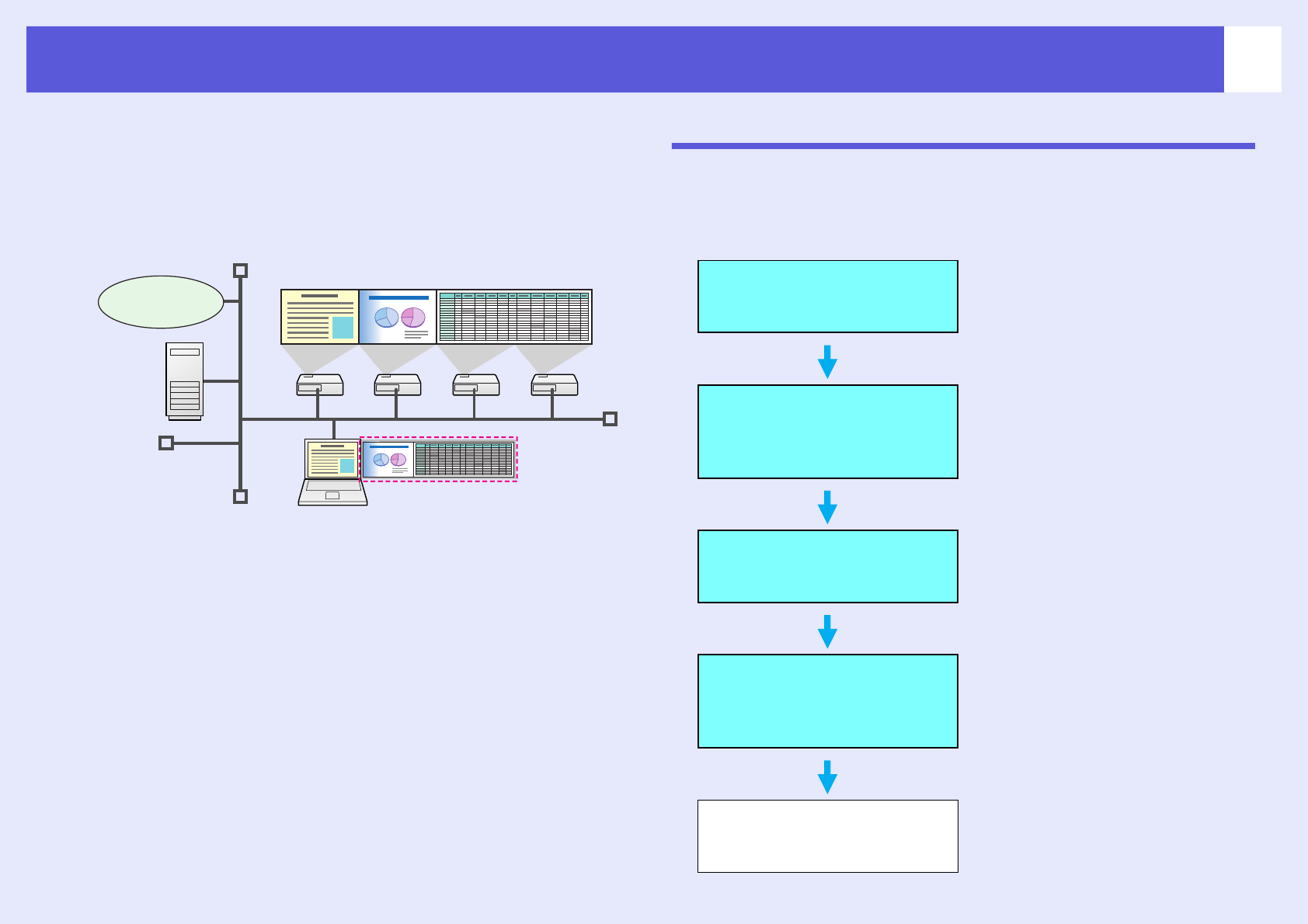
Overview of EMP NS Connection
9
f Main functions
The following convenient functions let you make various meetings and
presentations.
• Multi-Screen Display
s
p.21
You can project different images from one computer to a maximum of
four projectors, allowing you to project landscape images such as reports.
• Movie file transfer (Movie Sending Mode) s p.19
By using "Movie Sending Mode", a movie can be projected much
smoother than when it is being sent from an application running on a
PC. Because the audio is sent at the same time as the movie, you do not
need to connect the computer and the projector with an audio cable.
• Presentation mode s p.18
This function can project PowerPoint slide shows running on a
computer. You can give stylish presentations by projecting a black
screen while making preparations or when not performing a slide show
and so on.
• Distribution function
The screen being displayed by a remote computer can be simultaneously
displayed by up to four projectors with corresponding SSIDs.
• Switching function
By using the meeting switching function, if EMP NS Connection is installed
on all of the computers, the presenters can take turns and project their own
images without changing cables.
Steps for Connecting in Advanced Connection Mode
Use the following steps to connect and project in EMP NS Connection
Advanced connection mode.
In the following flowchart, you only need to perform the light blue
sections the first time you connect.
Internet
Install EMP NS Connection
on the computer to be
connected.
s
p.5
Make network settings on the
computer and put it into
network connection status.
s
p.10
Normally, when a computer is
connected with the network and
used, you do not need to make
computer network settings.
Make network settings on the
projector and put it into network
connection status.
s
p.10
Connect the projector to the
network via a network cable.
See your
User’s Guide
for
more information.
Start EMP NS Connection on
the computer and connect with
the projector.
s
p.11