
Operation Guide


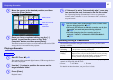


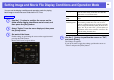
Table Of Contents
- Front Cover
- Contents
- EasyMP Summary
- Installing the Software
- Connecting with EMP NS Connection
- Convenient EMP NS Connection Functions
- Connecting to a Projector on a Different Sub-net
- Setting the EMP NS Connection Operation
- Using a Computer to Set Up, Monitor and Control Projectors
- Presentations Using PC Free
- Preparing a Scenario (Using EMP SlideMaker2)
- Appendix
- Copyrights and Trademarks

60
Setting Image and Movie File Display Conditions and Operation Mode
You can set the display conditions and operation mode for playing
back image or movie files as a Slide show in PC Free.
A
Use the [h] button to position the cursor on the
folder where display conditions are to be set, and
then press the [Esc] button.
B
Select "Option" from the menu displayed, then press
the [Enter] button
C
Set each of the items.
Enable settings by positioning the cursor on the target item and
pressing the [Enter] button.
Details of the items are given below.
D
Use the [h] button to position the cursor on "OK",
and press [Enter].
The settings are applied.
If you do not want to apply the settings, position the cursor on
"Cancel" and press the [Enter] button.
Procedure
Display order You can set the order of the files to be displayed.
You can select sorting of the files into either file
name order or revision date order.
Continuous
Play
You can determine whether to repeat the Slide
show.
Screen
switching time
You can set the time for a single file to be displayed
when running a Slide show. You can set a time
between 1 and 60 seconds. Or, if you don’t want the
files to change automatically during the Slide show,
select
"No". If you select "No", press the [Enter] or
[
]] button on the remote control to continue to the
next file during the Slide show.
Effect This sets the transition effects between files.