
Operation Guide


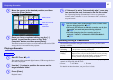


Table Of Contents
- Front Cover
- Contents
- EasyMP Summary
- Installing the Software
- Connecting with EMP NS Connection
- Convenient EMP NS Connection Functions
- Connecting to a Projector on a Different Sub-net
- Setting the EMP NS Connection Operation
- Using a Computer to Set Up, Monitor and Control Projectors
- Presentations Using PC Free
- Preparing a Scenario (Using EMP SlideMaker2)
- Appendix
- Copyrights and Trademarks

Projecting Scenarios
57
D
Move the cursor to the desired position, and then
press the [Enter] button.
E
Once you have completed editing, use the [h]
button to position the cursor on the "Edit
Complete" button, and then press [Enter].
The edited content can only be accessed while the SD card or USB
storage device is inserted into the projector.
Playing a Scenario
A
Start PC Free. s p.51
The content of the connected digital camera, USB storage device or
SD card is displayed.
B
Use the [h] button to position the cursor on the
target scenario folder.
C
Press [Enter].
Playback starts.
D
If "Advance" is set to "Automatically after", once play
has reached the end, it returns to the file list screen.
See "Operating During a Presentation" for how to operate the
scenario when "Advance" is set to "On mouse click", and how to
stop and cancel.
Operating During a Presentation
The following operations using the remote control are possible while
playing a scenario.
The following functions of the projector can be used when projecting a
scenario or image file with PC Free.
For details on these functions, see your User’s Guide.
Procedure
Slide to move
Point the cursor at
the target
destination
q
• You can rotate JPEG format images in the scenario while
they are being projected.
s
p.55
• The movie files that are included in scenarios can be fast-
forwarded, rewound and paused during playback.
s
p.59
• The slide changing time for scenarios can be set
using the "Advance" command in EMP SlideMaker2.
s
p.79
Screen
Switching
Proceed to the next screen by pressing [Enter] or []]. Return
to the previous screen by pressing [[].
Stopping
Playing
The message "Do you want to quit playing the scenario?" is
displayed when you press the [Esc] button. Close by selecting
"Exit" and pressing the [Enter] button. Continue playback by
selecting "Return" and pressing the [Enter] button.
• Freeze • A/V Mute • E-zoom