
Operation Guide
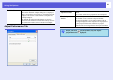


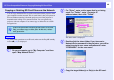

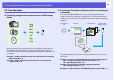
Table Of Contents
- Front Cover
- Contents
- EasyMP Summary
- Installing the Software
- Connecting with EMP NS Connection
- Convenient EMP NS Connection Functions
- Connecting to a Projector on a Different Sub-net
- Setting the EMP NS Connection Operation
- Using a Computer to Set Up, Monitor and Control Projectors
- Presentations Using PC Free
- Preparing a Scenario (Using EMP SlideMaker2)
- Appendix
- Copyrights and Trademarks

PC Free Compatible Files and Copying/Deleting SD Card Files
48
Copying or Deleting SD Card Files over the Network
You can copy and delete files on an SD card inserted in the projector from
your computer over the network. This is useful since it lets you operate an
SD card without removing it from the projector even if the projector is
mounted on the ceiling or in a remote location. You can operate one
projector with one computer. You cannot copy or delete files on a USB
storage device.
To perform file operations on an SD card, make sure the EasyMP standby
screen (s p.51) is displayed.
A
On your computer, go to "My Computer" and then
open "Map Network Drive".
B
For "Drive", enter a drive name that is not being
used. For "Folder", enter \\Projector IP
address\share, then click "Finish".
The share folder is displayed.
C
Double-click the share folder. If you have set a
Network Drive password in the projector, you will be
asked to enter a user name and password. enter
“EPSONDRV” for the user name
D
Copy the target folder(s) or file(s) to the SD card.
q
If the write protection switch on the SD card is set to read-
only, you cannot copy or delete files. In this case, release
write protection.
Procedure
For Windows