
Operation Guide



Table Of Contents
- Front Cover
- Contents
- EasyMP Summary
- Installing the Software
- Connecting with EMP NS Connection
- Convenient EMP NS Connection Functions
- Connecting to a Projector on a Different Sub-net
- Setting the EMP NS Connection Operation
- Using a Computer to Set Up, Monitor and Control Projectors
- Presentations Using PC Free
- Preparing a Scenario (Using EMP SlideMaker2)
- Appendix
- Copyrights and Trademarks
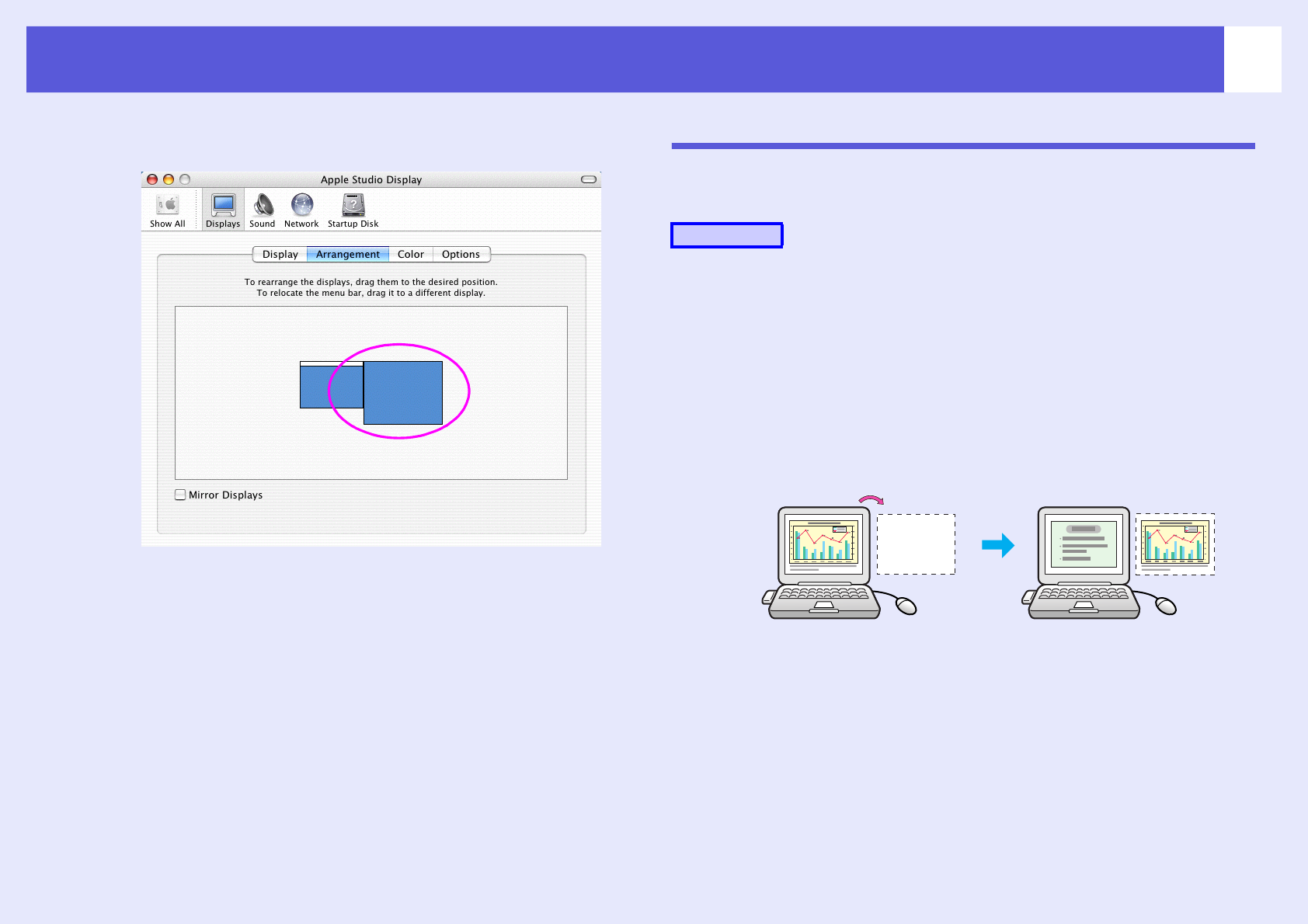
Using Multi-Screen Display
28
F
Drag the displayed monitor icon and place it where
desired.
G
Close the display setting screen.
Allocating the image to be projected
The following explains how to allocate the computer image using
Arrangement example 1. s p.21
A
Open the file to be projected.
Start the PowerPoint and Excel files.
B
Drag the window to the desired virtual display
monitor, and allocate it where the image is to be
projected.
Drag the Excel window to the right until it cannot be seen. As a
result, the PowerPoint window appears on the actual monitor, while
the Excel window appears on the virtual display on the right.
Procedure