
Operation Guide



Table Of Contents
- Front Cover
- Contents
- EasyMP Summary
- Installing the Software
- Connecting with EMP NS Connection
- Convenient EMP NS Connection Functions
- Connecting to a Projector on a Different Sub-net
- Setting the EMP NS Connection Operation
- Using a Computer to Set Up, Monitor and Control Projectors
- Presentations Using PC Free
- Preparing a Scenario (Using EMP SlideMaker2)
- Appendix
- Copyrights and Trademarks
77
Cases Like These
Checking the Projection Scenario Status from a
Computer
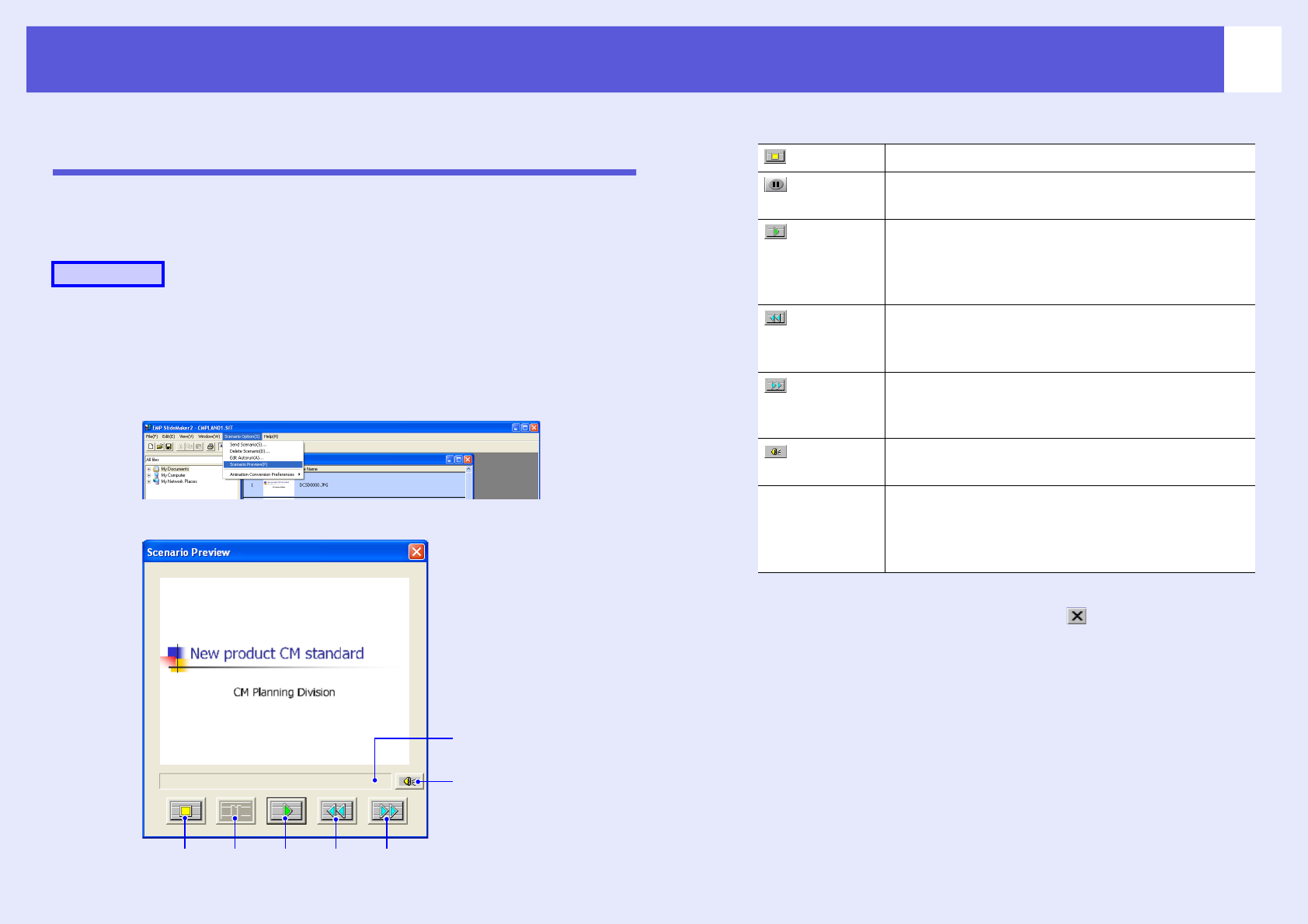
You can use your computer to preview your scenario. All of the structural
elements of the scenario such as images, animation, and BGM
(background music) can be played.
A
Open the scenario you want to check in EMP
SlideMaker2.
B
Select "Scenario Options" - "Scenario Preview".
The Scenario Preview screen is displayed.
The following table shows the functions of each button.
C
After you finish checking, click " " at the top right
of the window to close the scenario preview screen.
Procedure
RewindPause
Volume
Play
Status bar
Fast-forwardStop
Freeze Stops playback and returns to the first slide.
Pause Pauses the slides when "Automatically after" is
selected for "Advance". s p.79
Play Starts the scenario preview. Also, this restarts
stopped or paused scenarios. Displays the next slide
when "On mouse click" is set for "Advance".
s p.79
Rewind Returns to the previous slide or returns to the screen
prior to the animation. The animation effects are not
performed upon return.
Fast-
forward
Proceeds to the next slide or shows the screen after
animation performance. At this time the animation
effects are not performed.
Volume Performs volume control. Adjusts the volume of
BGM (background music).
Status bar Displays the progress of the scenario on a bar. At
first there is no bar display, and then the bar extends
from left to right as the scenario progresses. The
scenario ends at the right hand side of the bar.