
Operation Guide


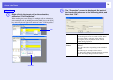

Table Of Contents
- Front Cover
- Contents
- EasyMP Summary
- Installing the Software
- Connecting with EMP NS Connection
- Convenient EMP NS Connection Functions
- Connecting to a Projector on a Different Sub-net
- Setting the EMP NS Connection Operation
- Using a Computer to Set Up, Monitor and Control Projectors
- Presentations Using PC Free
- Preparing a Scenario (Using EMP SlideMaker2)
- Appendix
- Copyrights and Trademarks

Starting up SlideMaker2 and Converting Files
71
E
Drag and drop the PowerPoint file from the file
window to the scenario window.
Or, double-click the target PowerPoint file icon in the file window.
F
Click "Continue".
G
Click "Start".
The conversion to a scenario starts and the Slide show is performed
automatically.
If the [Esc] key on the keyboard is pressed during the Slide show,
the Slide show is canceled and the scenario is not created.
H
When the Slide show ends, click the screen.
You see the Send Scenario dialog box.