
Operation Guide




Table Of Contents
- Front Cover
- Contents
- EasyMP Summary
- Installing the Software
- Connecting with EMP NS Connection
- Convenient EMP NS Connection Functions
- Connecting to a Projector on a Different Sub-net
- Setting the EMP NS Connection Operation
- Using a Computer to Set Up, Monitor and Control Projectors
- Presentations Using PC Free
- Preparing a Scenario (Using EMP SlideMaker2)
- Appendix
- Copyrights and Trademarks
40
Using Set Options
You can make general setting options such as the processing method
when EMP NS Connection starts.
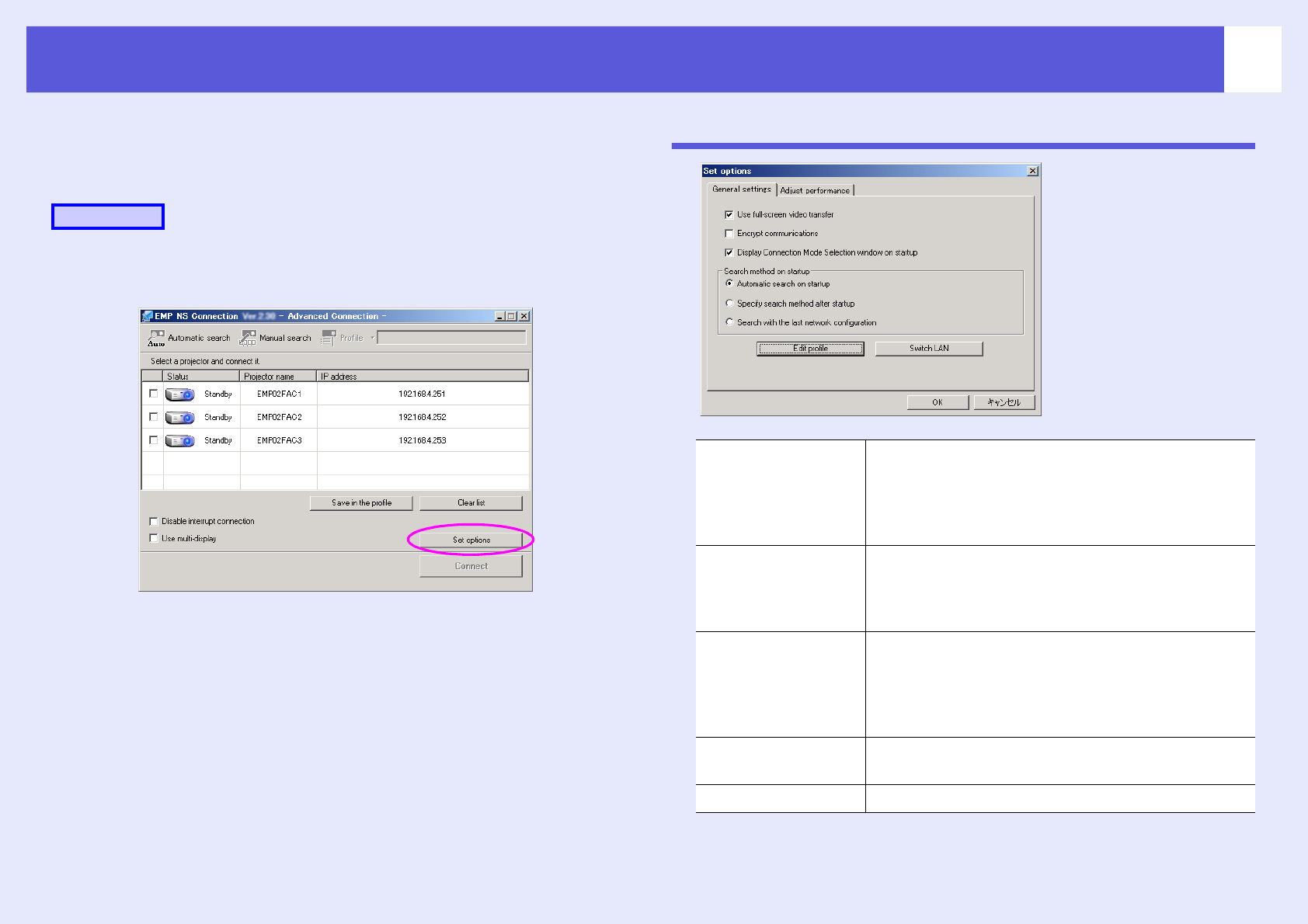
Call the option settings from the EMP NS Connection's main screen.
A
Click "Set options" on the EMP NS Connection main
screen.
The "Set options" screen is displayed.
B
Set each of the items.
Confirm the details of the set items in the next step. When you have
made all the necessary settings, click "OK" to close the "Set
options" screen.
General settings Tab
Procedure
Use full-screen video
transfer
Windows only (excluding Windows Vista)
Select this check box when you want to display
Windows Media Player in full screen. However, clear
this check box if the movie does not playback
smoothly.
Encrypt
communications
Select to encode and transmit data. Even if data is
intercepted, it cannot be deciphered.
When using "Quick Connection Mode", make sure you
always select this check box.
Display Connection
Mode Selection
window on startup
Set whether or not the "Quick Connection Mode"/
"Advanced Connection Mode" screen is displayed
when EMP NS Connection starts.
Clear this check box once you have settled on a regular
startup method.
Search method on
startup
Sets the projector search method that is executed when
EMP NS Connection is started.
Edit profile The "Edit profile" dialog box is displayed. s p.37