
Operation Guide


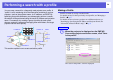


Table Of Contents
- Front Cover
- Contents
- EasyMP Summary
- Installing the Software
- Connecting with EMP NS Connection
- Convenient EMP NS Connection Functions
- Connecting to a Projector on a Different Sub-net
- Setting the EMP NS Connection Operation
- Using a Computer to Set Up, Monitor and Control Projectors
- Presentations Using PC Free
- Preparing a Scenario (Using EMP SlideMaker2)
- Appendix
- Copyrights and Trademarks

34
Performing a search with a profile
You can save a search for a frequently used projector as a profile. A
"profile" is a file containing all of the information pertaining to a given
projector, such as the projector name, its IP address, and SSID. By
specifying that profile whenever you subsequently perform a search,
the search will be performed using the saved IP address and projector
name. For example, by creating a group of profiles for each place
where a projector is setup and managing them with folders, the target
projector can be found quickly.
This section explains how to create and edit a profile.
Making a Profile
Profiles are made by saving searched results.
For details on how to edit a previously saved profile, see "Managing a
Profile". s p.37
For details on how to locate a projector on a different sub-net, see
"Searching by Specifying the IP Address and Projector Name (For
"Advanced Connection Mode" only)". s p.33
A
When the projector is displayed on the EMP NS
Connection projector selection screen, click "Save
in the profile".
The "Save in the profile" screen is displayed.
Location A
Location B
Location C
Location D
Location A
Location B
Floor 1
Floor 2
Floor 3
Procedure