
Operation Guide


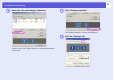


Table Of Contents
- Front Cover
- Contents
- EasyMP Summary
- Installing the Software
- Connecting with EMP NS Connection
- Convenient EMP NS Connection Functions
- Connecting to a Projector on a Different Sub-net
- Setting the EMP NS Connection Operation
- Using a Computer to Set Up, Monitor and Control Projectors
- Presentations Using PC Free
- Preparing a Scenario (Using EMP SlideMaker2)
- Appendix
- Copyrights and Trademarks

Using Multi-Screen Display
25
E
Drag the displayed monitor icon and place it where
desired.
Here, the actual monitor (1) is placed on the left, while the virtual
monitor (3) is placed on the right.
When the PC has multiple display output terminals, the numbers
assigned to the virtual terminals will be sequential to those of the
physical terminals.
When the monitor icon appears as follows, a virtual display is
connected.
F
Click the "OK" button. The "Display Properties"
screen closes.
Go to s p.28.
q
• When an external monitor is connected as a secondary
monitor, the image for that screen cannot be projected.
• Depending on the hardware, the number of the secondary
monitor may be other than "2". When the monitor icon is
displayed on the screen, click the icon and confirm that
the monitor type shown under "Display" is other than
"secondary".
31