
Operation Guide


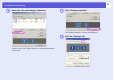


Table Of Contents
- Front Cover
- Contents
- EasyMP Summary
- Installing the Software
- Connecting with EMP NS Connection
- Convenient EMP NS Connection Functions
- Connecting to a Projector on a Different Sub-net
- Setting the EMP NS Connection Operation
- Using a Computer to Set Up, Monitor and Control Projectors
- Presentations Using PC Free
- Preparing a Scenario (Using EMP SlideMaker2)
- Appendix
- Copyrights and Trademarks

Using Multi-Screen Display
23
A
Start Windows on the computer, then select "Start" -
"Programs" (or "All Programs") - "EPSON
Projector" - "Add/Remove Epson Virtual Display".
The "Add/Remove Epson Virtual Display" screen is displayed.
B
Select the virtual display you want to use.
Up to four monitors can be added. In this case, a single virtual
display is to be used, so select one. 3When, for example, using
three projectors, such that you have to set multiple virtual displays,
only select as many displays as is necessary.
Any one of the displays can be selected.
C
Click "OK".
When you click "OK", the drivers for the virtual display are
enabled. At this point, it is normal for the display to flicker. Wait
for the "Add/Remove Epson Virtual Display" screen to close.
f Arrange the virtual display
After starting EMP NS Connection, set up the virtual displays as
described below (for Macintosh, go to s p.26).
A
Select "Start" - "Programs" (or "All Programs") -
"EPSON Projector" - "EMP NS Connection".
EMP NS Connection starts.
Procedure
Procedure
For Windows