
Operation Manual




Related Information
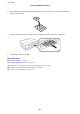
& “Inserting a Memory Card” on page 37
& “Menu Options for Printing from the Control Panel” on page 51
& “Loading Paper in the Paper Cassette 2” on page 28
& “Loading Paper in the Paper Cassette 1” on page 24
& “List of Paper Types” on page 23
& “Placing Originals on the Scanner Glass” on page 35
Printing Original Writing Paper and Calendars
You can easily print lined paper, calendars, original writing paper and greeting cards using the Personal
Stationery menu.
1. Load paper in the printer.
c
Important:
❏ When loading in the paper cassette, make the paper settings on the control panel.
❏ When loading in the rear paper feed slot, do not load paper now. When you select the rear paper feed slot as
the paper source setting, and then press the
x
button, the printer will prompt you to load paper. Follow the
instructions to load the paper.
2. To print writing paper, greeting cards, or a monthly calendar using a photo on your memory card, insert the
memory card into the printer.
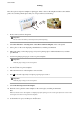
3. Select More Functions > Personal Stationery from the home screen.
4. Select a menu item.
Note:
When printing greeting cards, you can add an image stored in the printer instead of using a photo on your memory
card. To add an image stored in the printer, select Templ ate Ar t .
5. Follow the on-screen instructions to print.
User's Guide
Printing
47