
Operation Manual




Printing
When printing on A3-size paper, use of large capacity Epson genuine ink cartridges is highly recommended to
avoid a situation that you are prompted to replace ink cartridges in the middle of printing. If you replace ink
cartridges in the middle of printing, you may need to start over the printing again.
Related Information
& “Ink Cartridge Codes” on page 97
Printing from the Control Panel
Printing Photos by Selecting from a Memory Card
1. Load paper in the printer.
c
Important:
❏ When loading in the paper cassette, make the paper settings on the control panel.
❏ When loading in the rear paper feed slot, do not load paper now. When you select the rear paper feed slot as
the paper source setting, and then press the
x
button, the printer will prompt you to load paper. Follow the
instructions to load the paper.
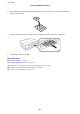
2. Insert a memory card into the printer.
c
Important:
Do not remove the memory card until you have
nished
printing.
Note:
Remove the memory card when printing from an external storage device such as a hard disk or USB ash memory.
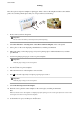
3. Select Print Photos on the control panel.
4. Select a photo you want to print from the screen displaying a thumbnail view.
Note:
❏ If you have a lot of photos on your memory card, you can sort photos to select them easily by pressing Options >
Browse.
❏ You can change the number of photos displayed in thumbnail view by pressing
.
User's Guide
Printing
43