
Basic Guide


Table Of Contents
- Front Matter
- Contents
- Welcome!
- Copying
- Making Prints From Your Digital Camera
- Printing on CDs and DVDs
- Scanning to a Memory Card
- Saving and Storing Photos
- Maintaining Your RX700
- Solving Problems
- Notices
- Index
- How to Copy, Print, and Scan Without a Computer
- How To Order Epson Ink and Paper
- Warranty
Printing a CD/DVD Without a Computer 57
6. Select your photo(s) for printing. The photos can be any size, since they’re
automatically resized to fit the disk. In 4-up and 12-up modes, you can select
multiple copies of each photo, if desired.
■ Use the l and r arrow buttons to preview your photos.
■ While a photo is displayed, use the + and – buttons to select how many
copies of it you’d like.
■ Press OK when done.
7. At the preview screen, press the x
Color button to print in color, or the
x
B&W button to print in grayscale. Your disk is printed.
To cancel printing, press the y
Stop button.
8. When printing is complete, pull the tray out of the printer and let the disk dry
fully before handling it.
Adjusting the Print Position
If your printed image is not centered on the CD or DVD, you can adjust its
printing position.
1. If necessary, print a test sample using the
blank cardboard check disk included with
your RX700 or an extra CD.
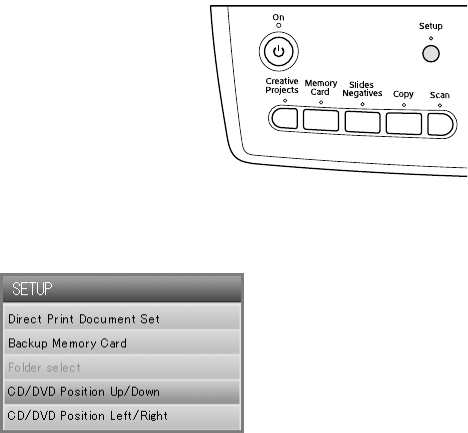
2. Press the
Setup button.
3. If the printed image is misaligned vertically, select
CD/DVD Position Up/
Down
. If it’s misaligned horizontally, select CD/DVD Position Left/Right.