
Operation Manual




Menu Options for User Settings
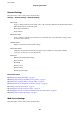
Select the menus on the control panel as described below.
Settings > User Settings
You can change the default settings of the following menus.
❏ Copy
❏ Scan to Computer
❏ Scan to Cloud
Menu Options for Restore Default Settings
Select the menus on the control panel as described below.
Settings > Restore Default Settings
Resets the following menus to their defaults.
❏ Network Settings
❏ Copy Settings
❏ Scan Settings
❏ Clear All Data and Settings
Menu Options for Firmware Update
Select the menus on the control panel as described below.
Settings > Firmware Update
Update:
Check if the latest version of the
rmware
has been uploaded to the network server. If an update is
available, you can select whether or not to start updating.
Notication:
Select On to receive a notication if a rmware update is available.
Saving Power
e
printer enters sleep mode or turns
o
automatically if no operations are performed for a set period. You can
adjust the time before power management is applied. Any increase will aect the product's energy eciency. Please
consider the environment before making any change.
Depending on the location of purchase, the printer may have a feature that turns it o automatically if it is not
connected to the network for 30 minutes.
User's Guide
Preparing the Printer
60