
Operation Manual


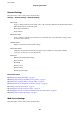


Universal Print Settings:
ese
print settings are applied when you print by an external device without using the printer driver.
Top Oset:
Adjust the top margin of the paper.
Left
Oset
:
Adjust the
le
margin of the paper.
Top Oset in Back:
Adjust the top margin for the back of the page when performing 2-sided printing.
Left Oset in Back:
Adjust the
le
margin for the back margin of the page when performing 2-sided printing.
Check Paper Width:
Select On to check the paper width before printing. is prevents printing beyond the edges of
the paper when the paper size setting are incorrect, but may reduce the printing speed.
Skip Blank Page:
Skips blank pages in the print data automatically.
Auto Error Solver:
Select an action to perform when a 2-sided printing error or a memory full error occurs.
❏ On
Displays a warning and prints in single-sided mode when a 2-sided printing error occurs, or prints
only what the printer could process when a memory full error occurs.
❏ O
Displays an error message and cancels printing.
Quiet Mode:
Select On to reduce noise during printing, however, this may lower the print speed. Depending on
the paper type and print quality settings you selected, there may be no
dierence
in the printer's noise
level.
Ink Drying Time:
Select the ink drying time you want to use when performing 2-sided printing. e printer prints the
other side aer printing one side. If your printout is smeared, increase the time setting.
Bidirectional:
Select On to change the print direction; Prints while the print head moves to the le and to the right.
If vertical or horizontal ruled lines on your printout look blurred or misaligned, disabling this feature
may solve the problem; however, doing so may reduce print speed.
PC Connection via USB:
Select Enable to allow a computer to access the printer when connected by USB. When Disable is
selected, printing and scanning that is not sent over a network connection is restricted.
User's Guide
Preparing the Printer
56