
Operation Manual


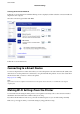


5. Use your computer to enter the PIN code (an eight digit number) displayed on the printer's control panel into
the access point within two minutes.
Note:
See the documentation provided with your access point for details on entering a PIN code.
6. Press the OK button on the printer.
7. Close the screen.
e screen automatically closes aer a specic length of time if you do not select Close.
Note:
If connection fails, restart the access point, move it closer to the printer, and try again. If it still does not work, print a
connection report and check the solution.
8. Close the network connection settings screen.
Related Information
&
“Basic Operations” on page 17
& “Checking the Network Connection Status” on page 31
& “When You Cannot Make Network Settings” on page 150
Making Wi-Fi Direct (Simple AP) Connection Settings
is
method allows you to connect the printer directly to devices without an access point.
e
printer acts as an
access point.
c
Important:
When you connect from a computer or smart device to the printer using the Wi-Fi Direct (Simple AP) connection,
the printer is connected to the same Wi-Fi network (SSID) as the computer or smart device and the communication
is established between them. Since the computer or smart device is automatically connected to the other connectable
Wi-Fi network if the printer is turned o, it is not connected to the previous Wi-Fi network again if the printer is
turned on. Connect to the printer's SSID for Wi-Fi Direct (Simple AP) connection from the computer or smart
device again. If you do not want to connect every time you turn the printer on or
o,
we recommend using Wi-Fi
network by connecting the printer to an access point.
User's Guide
Network Settings
28