
User manual
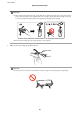


5. Insert the ink cartridge diagonally into the cartridge holder and gently push it down until it clicks into place.
6. Close the scanner unit, and then press the
x
button.
7. Follow the on-screen instructions.
c
Important:
Aer
installing the ink cartridge, the power light continues to
ash
while the printer is charging ink. Do not
turn o the printer during ink charging. If the ink charging is incomplete, you may not be able to print.
Related Information
& “Ink Cartridge Codes” on page 77
& “Ink Cartridge Handling Precautions” on page 78
Temporarily Printing with Black Ink
When color ink or photo black ink is expended but black ink still remains while printing from a computer, you can
use the following settings to continue printing for a short time using only black ink.
❏ Type of paper: plain papers, Envelope
❏ Color: Grayscale
❏ Borderless: Not selected
❏ EPSON Status Monitor 3: Enabled (for Windows only)
Because this feature is only available for approximately
ve
days, replace the expended ink cartridge as soon as
possible.
Note:
❏ If EPSON Status Monitor 3 is disabled, access the printer driver, click Extended Settings on the Maintenance tab, and
then select Enable EPSON Status Monitor 3.
❏ e available period varies depending on the usage conditions.
User's Guide
Replacing Ink Cartridges
83