
User manual




C
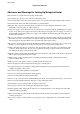
Function icons and names are displayed as mode icons.
Copy
Enters Copy mode that allows you to copy a document and a photo.
Print Photos
Enters Print Photos mode that allows you to print photos on your memory card.
Scan
Enters Scan mode that allows you to scan a document or a photo.
Personal
Stationery
Enters Personal Stationery mode that allows you to print original items such as ruled paper or
calendars using the photos in your memory card.
Setup
Enters Setup mode that allows you to make maintenance, printer setup, and network settings.
Quiet Mode
Displays Quiet Mode setting that allows you to reduce the noise the printer makes. However,
enabling this may reduce print speed. Depending on the paper type and print quality settings
you selected, there may be no dierence in the printer's noise level. This is a shortcut to the
following menu.
Setup > Printer Setup > Quiet Mode
Wi-Fi Setup Displays menus that allow you to set up the printer for use on a wireless network. This is a
shortcut to the following menu.
Setup > Network Settings > Wi-Fi Setup
D
Available buttons are displayed. In this example, you can proceed to the selected menu by pressing the OK button.
Related Information
& “Copying Basics” on page 62
& “Printing Photos by Selecting from a Memory Card” on page 33
& “Scanning Using the Control Panel” on page 67
& “Printing Original Writing Paper and Calendars” on page 36
& “Menu Options for Setup Mode” on page 93
Entering Characters
To enter characters and symbols for network settings from the control panel, use the
u
,
d
,
l
, and
r
buttons.
Press the
u
or
d
button to select the character you want to enter, and then press the
r
button to move the cursor
to the next input position. When you have nished entering characters, press the OK button.
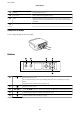
e displayed screen varies depending on the setting items. e following is the screen for entering the password
for your Wi-Fi network.
User's Guide
Printer Basics
17