
User`s guide
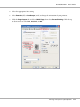



8. Click Settings to adjust the way your poster will be printed. The Poster Settings window opens.
9. Make the following settings:
Print Cutting
Guides
Prints guide lines for cutting.
Overlapping
Alignment
Marks
Slightly overlaps the panels and prints alignment markers so that the panels can
be aligned more precisely.
Trim Lines
Prints border lines on the panels to guide you when trimming the pages.
Note:
If you want to print only a few of the panels without printing the entire poster, click the panels
that you do not want to print.
10. Click OK to close the Poster Settings window.
After completing the steps above, print one test copy and examine the results before printing an
entire job. Then follow the instructions.
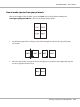
& See “How to make a poster from your printouts” on page 113.
B-310N/B-510DN User’s Guide
Printing with Special Layout Options 112